Split PDF pages into separate files
Split PDF pages when a hiring manager asks for one section of a long report, or a college portal rejects anything over 20 pages. Choose the file, pick a split mode and download every part in one ZIP — the document is processed in your browser.
- Files stay on your device
- No sign-up
- No watermark
- Up to 100 MB
- Works with
- .jpg
- .png
- .docx
- .xlsx
How to split a PDF into separate files
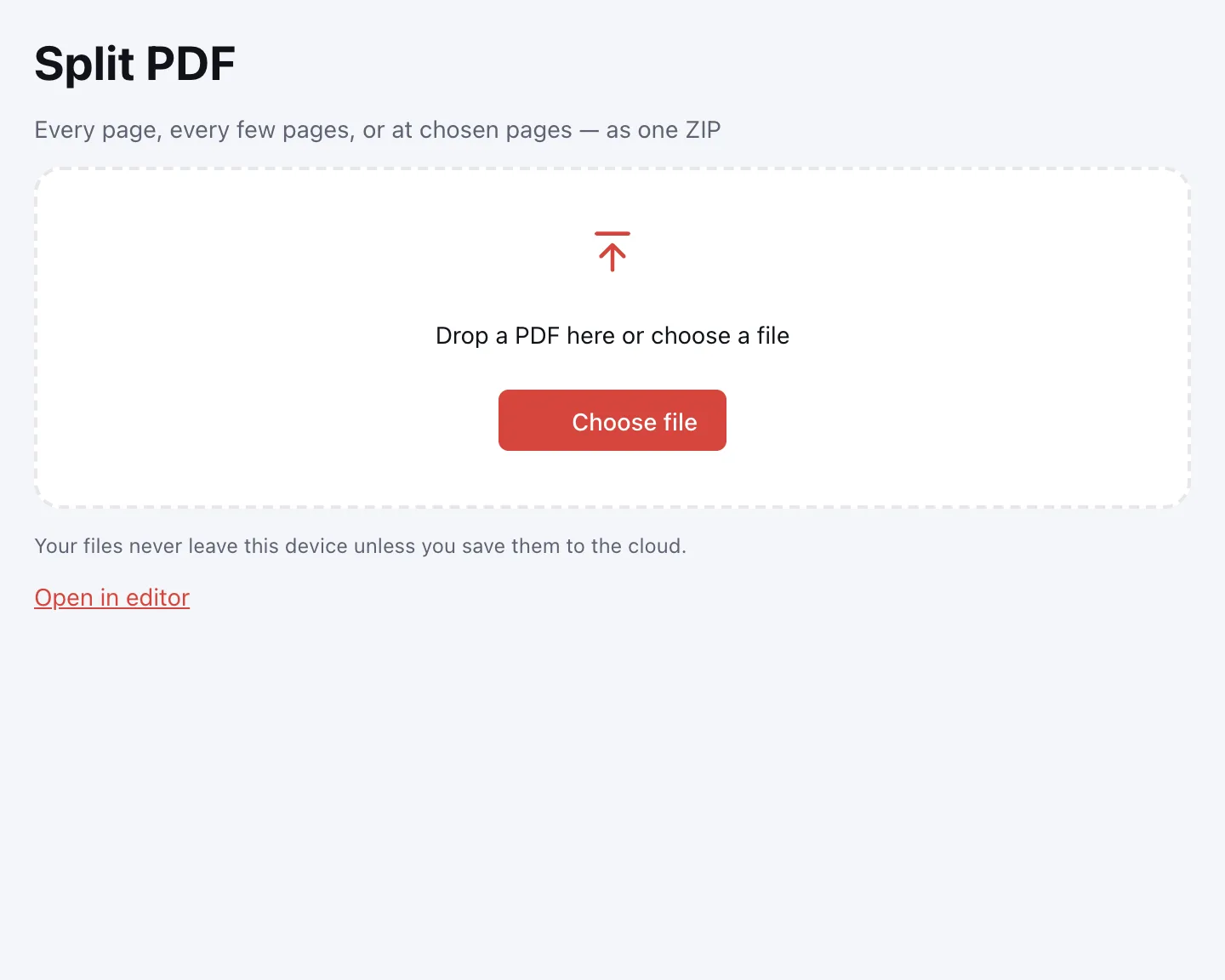
Choose your file
Click “Choose file” or drop the PDF onto the page. It opens in your browser and shows its page count, which helps you decide how many parts you need.
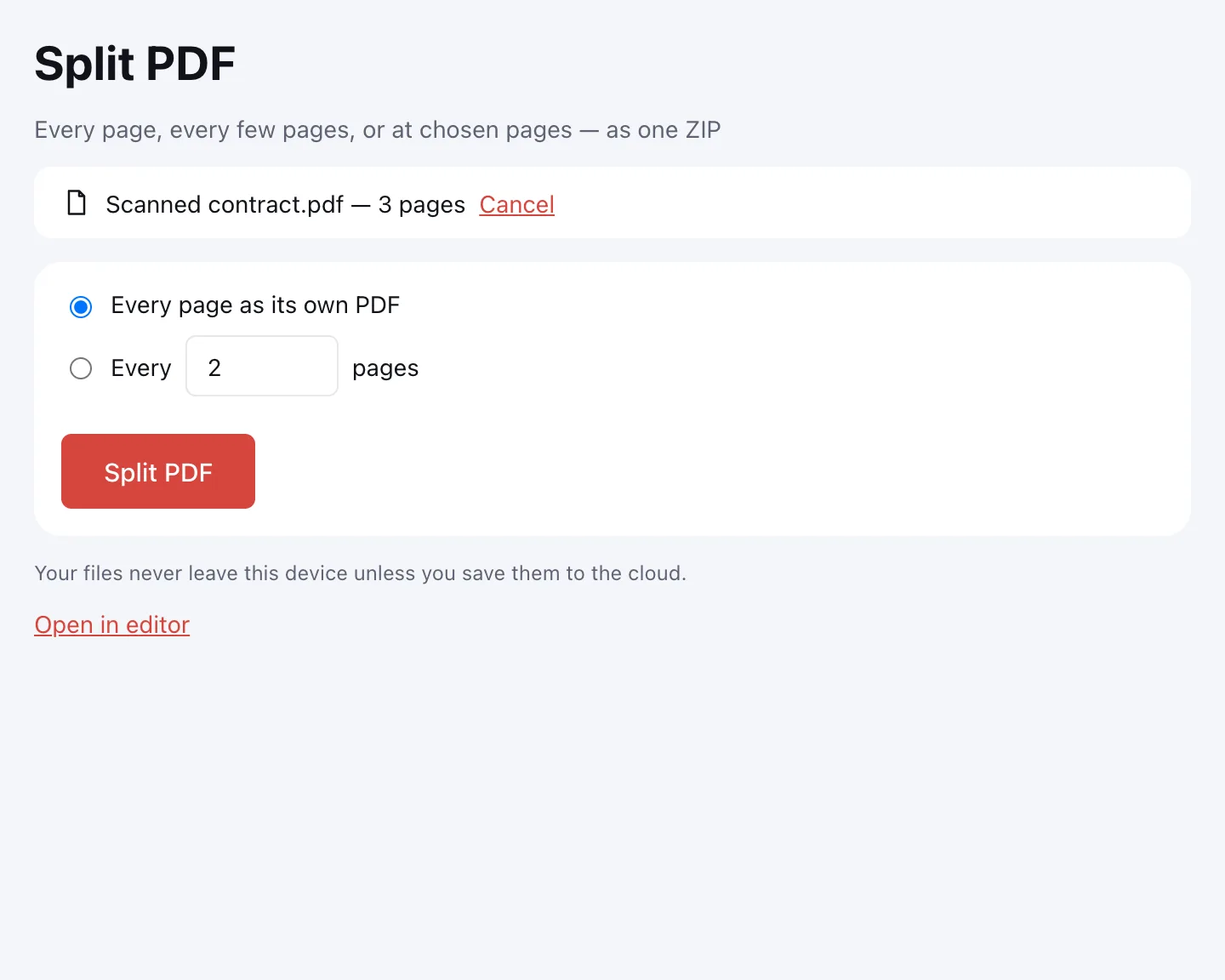
Pick a split mode
“Every page as its own PDF” gives one file per page. “Every N pages” makes equal parts — ten pages each, with a shorter final part.
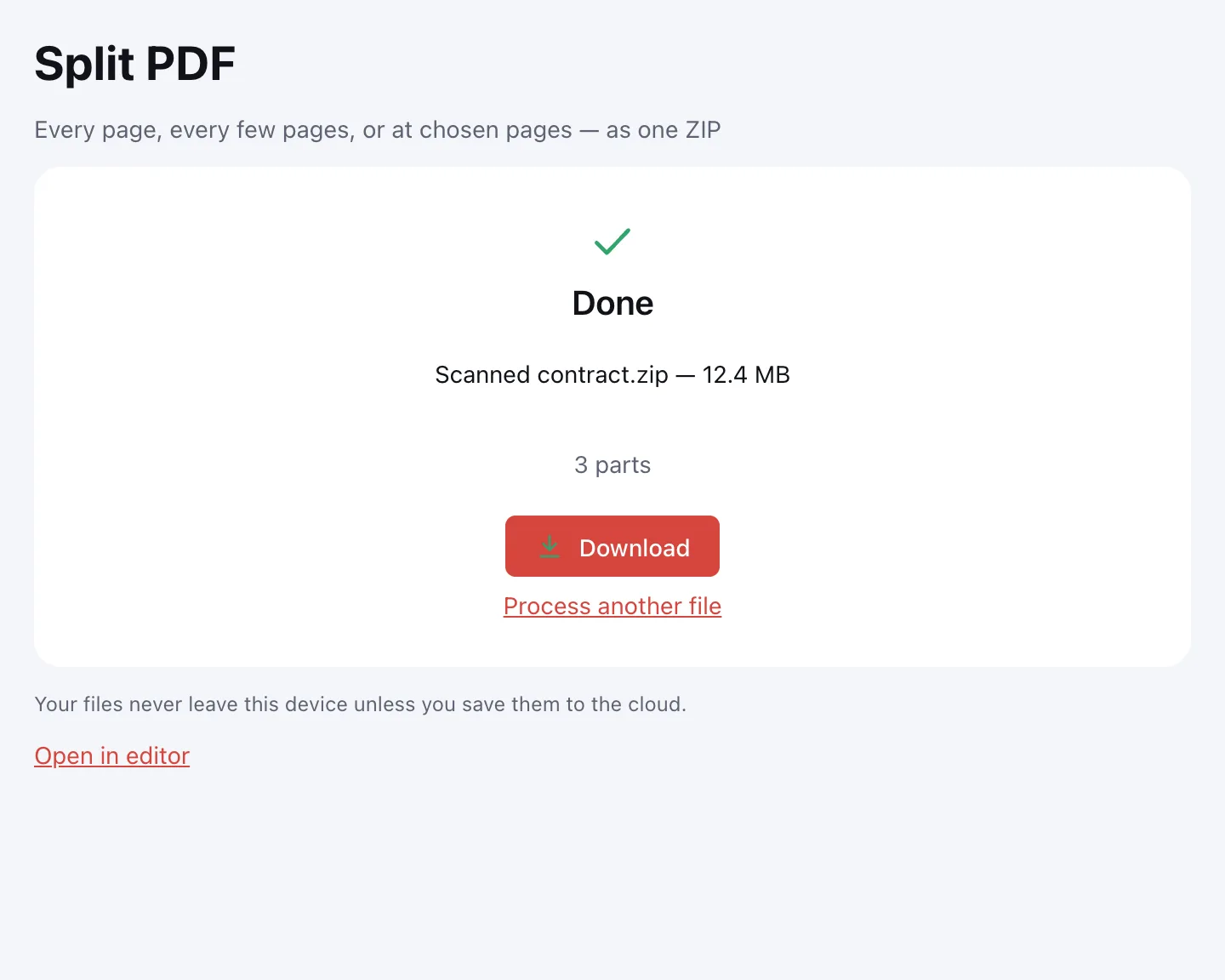
Click “Split PDF”
All parts arrive in one ZIP, and each file name carries its page range, such as “Report (pages 1-3).pdf”.
What the tool does
Pages are copied without recompression, so text stays selectable and images are not re-saved.
| Mode | What you get | Best for |
|---|---|---|
| Every page as its own PDF | One file per page | Scanned receipts, forms and certificates |
| Every N pages | Equal parts, the last one shorter | Long reports and manuals |
| New part before pages (editor) | Parts split before chosen pages, e.g. 3 and 7 | Chapters of different length |
When you need it
- Job applications: send only the work samples a posting asks for, not your whole portfolio.
- College applications: keep each transcript, essay or certificate in its own file.
- Tax season: separate a combined statement into documents for your records.
- E-filing portals: fit an upload limit without retyping or rescanning anything.
Separate PDF pages, one file each
To separate PDF pages, choose “Every page as its own PDF”. Every part is a complete PDF with the same page size and rotation, and document properties are copied into each one.
Split a two-page PDF in half
A two-page PDF splits into two separate files with the same setting: one file per page. For a single page from a longer document, extract pages instead.
Limitations
There is no split by file size or by bookmarks: the tool divides at page boundaries. A PDF can be up to 100 MB and 1,000 pages. Password-protected files work if you know the password; parts are saved without it.
Fonts and a repeated logo are stored in every part that uses them, so the parts together can be larger than the original. Combined parts are capped at 400 MB; choose larger chunks if needed.
Is it safe?
The PDF is split in your browser and never uploaded, which matters for tax forms, IDs and signed contracts. The ZIP of parts downloads straight to your device. Parts can be merged back or compressed if too large.
On phone and desktop
The splitter runs in any browser on Windows, macOS, Android and iPhone, with nothing to install. On a phone, pick the PDF from Files or Downloads; the ZIP opens in a file manager.
FAQ
Support: [email protected]
How do I split PDF pages?
Click “Choose file”, add the document and select “Every page as its own PDF”. For equal parts, enter a number under “Every N pages”. Then click “Split PDF” and download the ZIP — each file name shows its page range.
Can you separate PDF pages?
Yes. Every page can become its own PDF, or the document can be cut every N pages. Pages are copied without recompression, so text stays selectable. You get all parts in one ZIP, and the original is not changed.
How do I split a PDF into multiple files?
Choose a split mode and click “Split PDF”. With one file per page, the file count matches the page count; with “Every N pages”, you get as many parts as fit. Everything downloads as one ZIP.
How do I split PDF pages locally?
Add the PDF on this page: it is processed in your browser, not on a server. Choose the split mode, click “Split PDF” and download the ZIP. Nothing is uploaded, so contracts and tax documents stay on your device.
How do I split a two-page PDF?
Choose “Every page as its own PDF” and you get two separate files, one per page. The same mode works for any document length. If you need just one page as a single PDF, use the extract tool.
Is it free? Is there a watermark?
It is free, with no sign-up and no watermark. Nothing is added to your pages — no logo, no extra sheet, just your documents split the way you chose. There is no daily limit on splits; only the file limits apply.
Is it safe to upload documents?
Nothing is uploaded: the split happens in your browser. Tax forms, IDs and signed contracts stay with you. The ZIP downloads straight to your device, and no copy is kept anywhere else.
More PDF tools
Compress PDF
Make a PDF smaller for e-mail or an upload form, with three quality levels.
Merge PDF
Combine several PDFs and images into one file, in the order you choose.
Rotate PDF
Turn PDF pages 90° or 180° — the whole document or just the pages you pick.
Delete PDF pages
Remove the pages you don’t need and save a new PDF with everything else intact.
Extract PDF pages
Save the pages you choose as a new PDF, in the order you list them.
Organize PDF
Reorder PDF pages by dragging thumbnails, rotate, delete or insert pages.
Crop PDF
Trim the same margin from all four sides of your PDF pages.
JPG to PDF
Combine JPG and PNG pictures into one PDF, in the order you choose.
Split PDF pages into separate files
Split a PDF into single pages or fixed-size parts and download them as one ZIP.
Open editor