Crop PDF pages and trim the margins
Crop a PDF when a scan leaves wide white margins that make the text tiny on a phone, or when a printout wastes half a sheet. Enter how many points to trim from each side and click “Crop”: the visible area shrinks, and the file stays on your device.
- Files stay on your device
- No sign-up
- No watermark
- Up to 100 MB
- Works with
- .jpg
- .png
- .docx
- .xlsx
How to crop a PDF
Choose your file
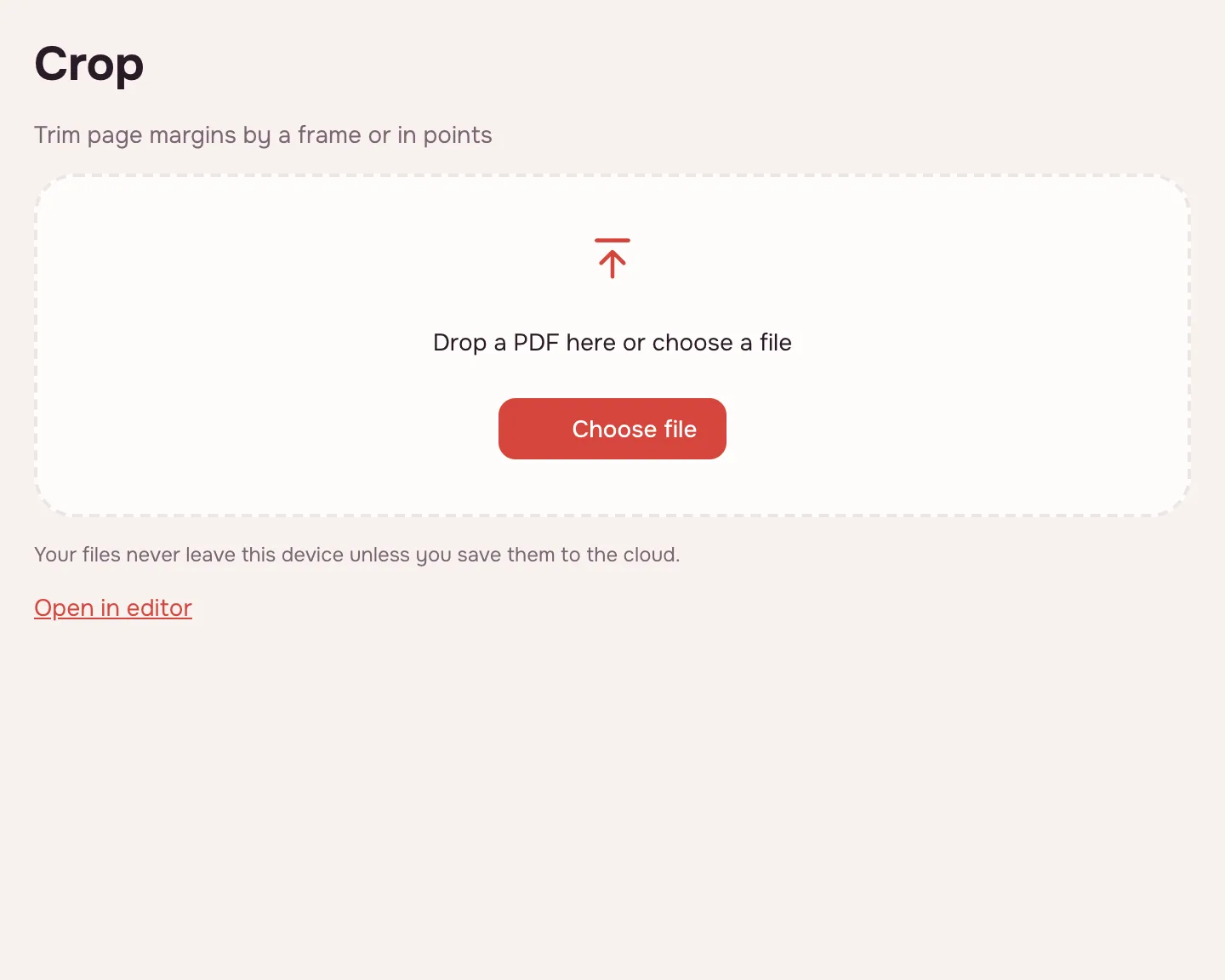
Click “Choose file” or drop the PDF onto the box. It opens in your browser and shows how many pages it has.
Set the margin
In “Trim from each side, pt” enter a value from 1 to 1000; the default is 36 pt, about half an inch (12.7 mm). The same margin is cut from all four sides. Leave the page field empty to crop the whole document.
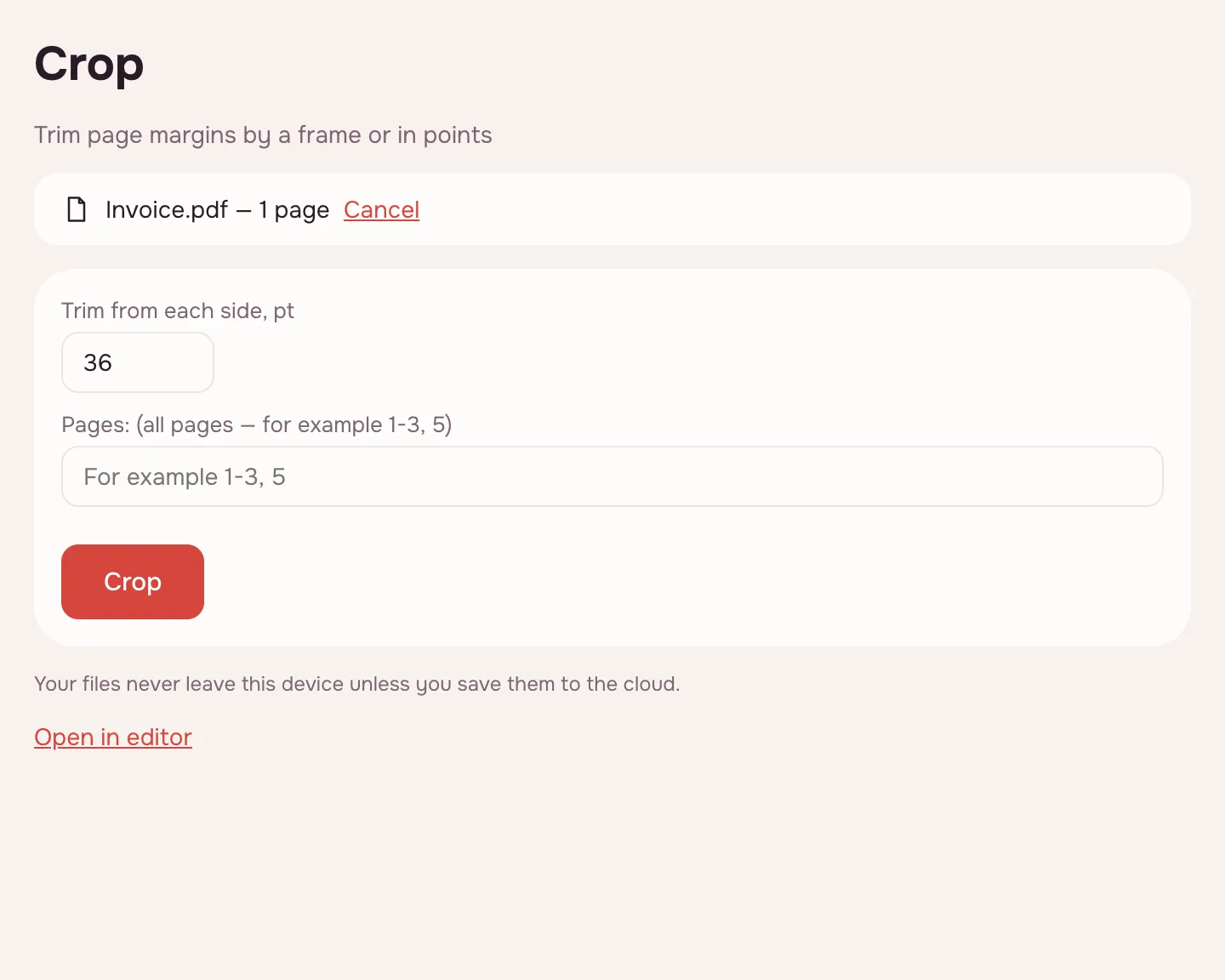
Click “Crop”
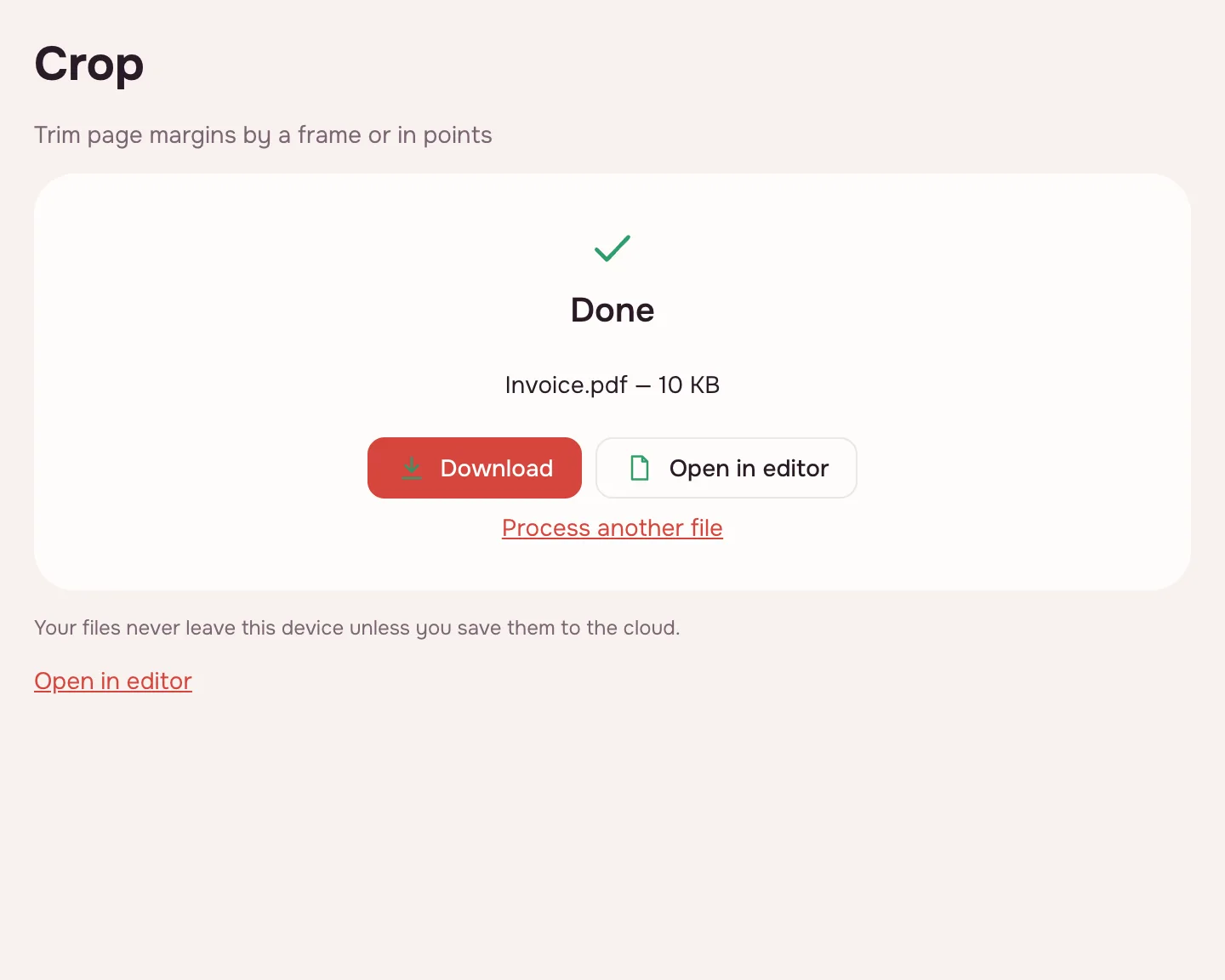
The tool trims every side and shows the result. If too little would remain, it stops with “Too little would remain…” — lower the value and try again. Then download the PDF or open it in the editor.
Download the PDF
Click “Download” to save the cropped file to your device. The original is not changed, so you can repeat the crop with a different value.
What the tool does
Quick crop takes one value in points and applies it to all four sides. A point is 1/72 of an inch; the field accepts 1 to 1000, and 36 pt — about 12.7 mm — is filled in by default. Leave the page field empty to crop the whole document, or name the pages you want.
| Value | In inches and millimetres | Typical use |
|---|---|---|
| 18 pt | 0.25 in / about 6.4 mm | Narrow borders around the text |
| 36 pt | 0.5 in / about 12.7 mm — default | Everyday scan margins |
| 72 pt | 1 in / 25.4 mm | Wide white edges and empty background |
Crop PDF pages: what happens to the file
Cropping sets the page's visible area — the crop box. Anything outside it is hidden in every viewer and when printing, but it is not deleted from the file. That makes cropping good for margins, but not for removing confidential text.
To remove a name, an account number or an amount for good, use redact the PDF.
When you need to crop a PDF
- Scans with wide white margins: make the text larger on a phone screen.
- Job applications: tidy a scanned certificate so it matches the rest of the packet.
- College applications: trim a transcript scan before attaching it to a portal.
- Printing: remove empty edges so the page uses the sheet better.
Crop a PDF page precisely in the editor
In the editor you can crop by drawing a frame on the page — only what is inside the frame stays — or by setting the top, right, bottom and left sides separately. That suits spreads and pages with uneven margins.
If the scan is also sideways, rotate the pages first.
Limitations
There is no automatic crop to the content: you choose the margin. It changes the visible area of the page as a whole, not a picture inside it. A file can be up to 100 MB and 1,000 pages. Password-protected PDFs open once you enter the password, and the result is saved without it.
If the file is still heavy afterwards, compress the PDF.
What crop PDF size means
“Crop PDF size” usually means one of two things: the page size after trimming, or the file size. Cropping hides the margins but does not shrink the file: the hidden content stays. If you need a smaller upload, crop first and then compress.
Is it safe to crop PDFs online?
The file is processed in your browser on your own device and is never uploaded, so IDs, tax forms and contracts stay with you. It only reaches Zotu cloud if you click “Save to cloud” after signing in; saved files are kept in the EU/US under GDPR.
Crop a PDF on Mac, Windows, iPhone and Android
The cropper runs in any up-to-date browser, with nothing to install. On a phone, pick the PDF from Files or Downloads, enter the margin and save the result back to your device.
FAQ
Support: [email protected]
Can you crop PDF pages?
Yes. Add the PDF, enter how many points to trim from each side and click “Crop”. The same margin is cut from the top, right, bottom and left, and you can apply it to the whole document or to chosen pages. Then download the cropped PDF; the original file is left as it was.
How do I crop pages in a PDF?
Click “Choose file”, open the document and type a value in “Trim from each side, pt” — 36 pt is about half an inch. Leave the page field empty to crop every page, or list the pages you need. Click “Crop” and download the result.
How to crop a PDF?
Enter the margin in points and run the tool. A point is 1/72 of an inch, so 72 pt is one inch and 36 pt is about 12.7 mm. The same amount is trimmed from all four sides. If too much would be removed, the tool refuses and asks for a smaller value.
Can you crop in a PDF without deleting content?
Cropping does not delete anything: it sets the visible area of the page, so what lies outside is hidden in viewers and on print but stays inside the file. For confidential details, use redaction, which removes the chosen fragments for good.
What is crop pages in a PDF?
It means trimming the visible area of a page — usually the empty margins around a scan. The page itself keeps its size, but everything outside the crop box is no longer shown. You set one margin in points, and the tool applies it to every side.
How do I crop a PDF on Mac?
Open this page in Safari, Chrome or another browser on macOS and choose the file. Set the margin in points, click “Crop” and download the result. Nothing needs to be installed, and the document is processed on your Mac rather than uploaded.
How do I crop PDF pages in a viewer?
You do not need one: choose the PDF here, enter the margin and click “Crop”. The crop box is written into the PDF itself, so every viewer shows the same visible area. A built-in image cropper usually changes only a picture on screen, not the page's visible area.
Is it free? Is there a watermark?
It is free, with no sign-up and no watermark. Nothing is added to the result — no logo, no stamp and no extra sheet. The limits are on the file: up to 100 MB and 1,000 pages.
Is it safe to upload documents?
Nothing is uploaded: the file is processed in your browser on your own device. Scanned IDs, contracts and statements never reach a server. The result goes to cloud storage only if you click “Save to cloud” after signing in, and saved files are kept in the EU/US under GDPR.
More PDF tools
Compress PDF
Make a PDF smaller for e-mail or an upload form, with three quality levels.
Merge PDF
Combine several PDFs and images into one file, in the order you choose.
Split PDF
Split a PDF into single pages or fixed-size parts and download them as one ZIP.
Rotate PDF
Turn PDF pages 90° or 180° — the whole document or just the pages you pick.
Delete PDF pages
Remove the pages you don’t need and save a new PDF with everything else intact.
Extract PDF pages
Save the pages you choose as a new PDF, in the order you list them.
Organize PDF
Reorder PDF pages by dragging thumbnails, rotate, delete or insert pages.
Redact PDF
Black out and remove personal data from a PDF: phone numbers, SSNs, emails, card numbers.
Crop PDF pages and trim the margins
Trim the same margin from all four sides of your PDF pages.
Open editor