Extract pages from a PDF online
Extract PDF pages when you need one table from a long report, two chapters from a manual, or just the ID page from a bundle of scans. Type the pages or ranges, click “Extract pages” and get a separate PDF: the pages come out in the order you listed, and the original document is not changed.
- Files stay on your device
- No sign-up
- No watermark
- Up to 100 MB
- Works with
- .jpg
- .png
- .docx
- .xlsx
How to extract pages from a PDF
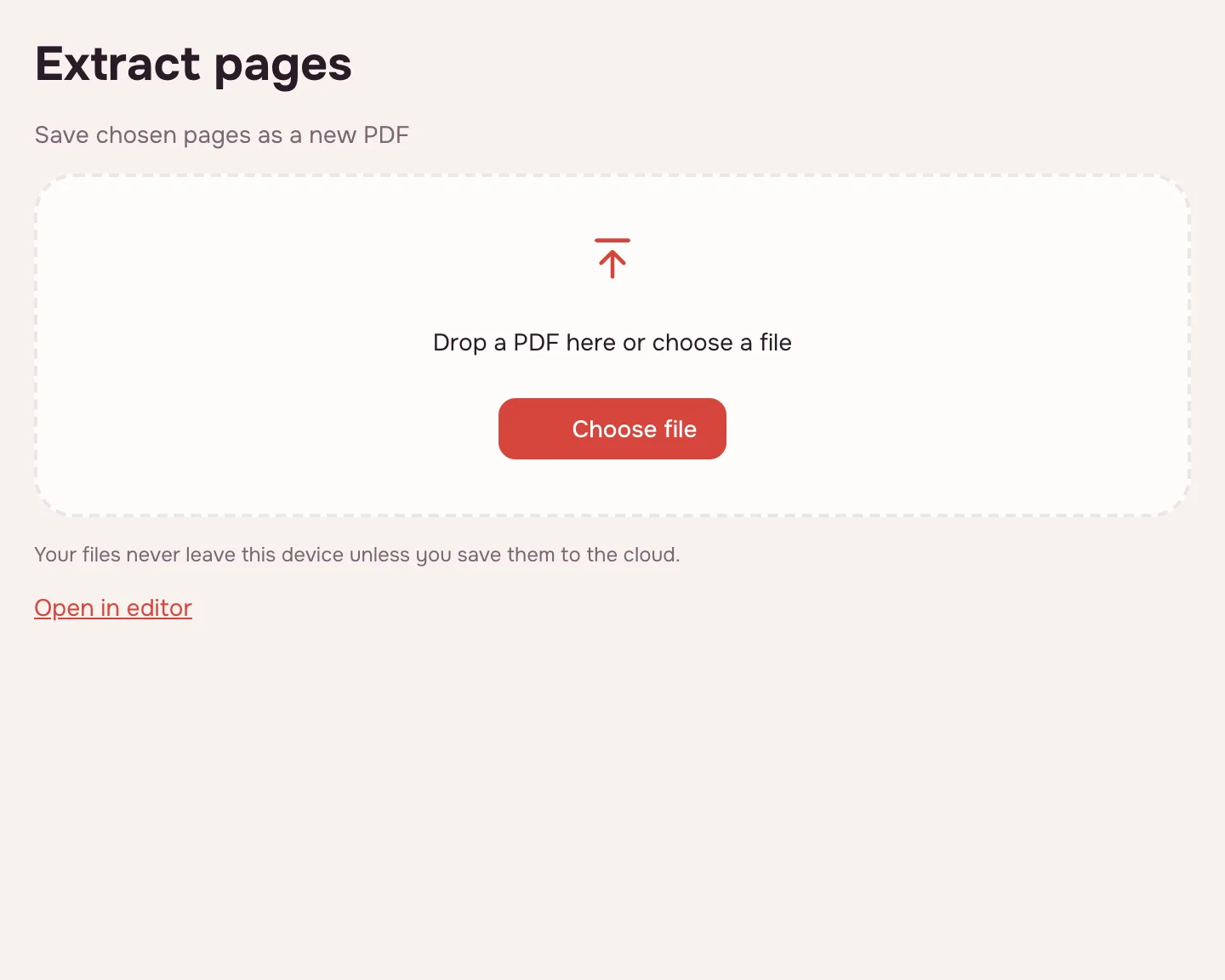
Choose your file
Click “Choose file” or drop the PDF onto the page. It opens in your browser and shows its page count, which helps you check ranges before typing them.
List the pages
Type numbers and ranges: “3” for one page, “5-9” for a run, “8, 1-3” to put page 8 first. The field is required, and the same page can be listed twice.
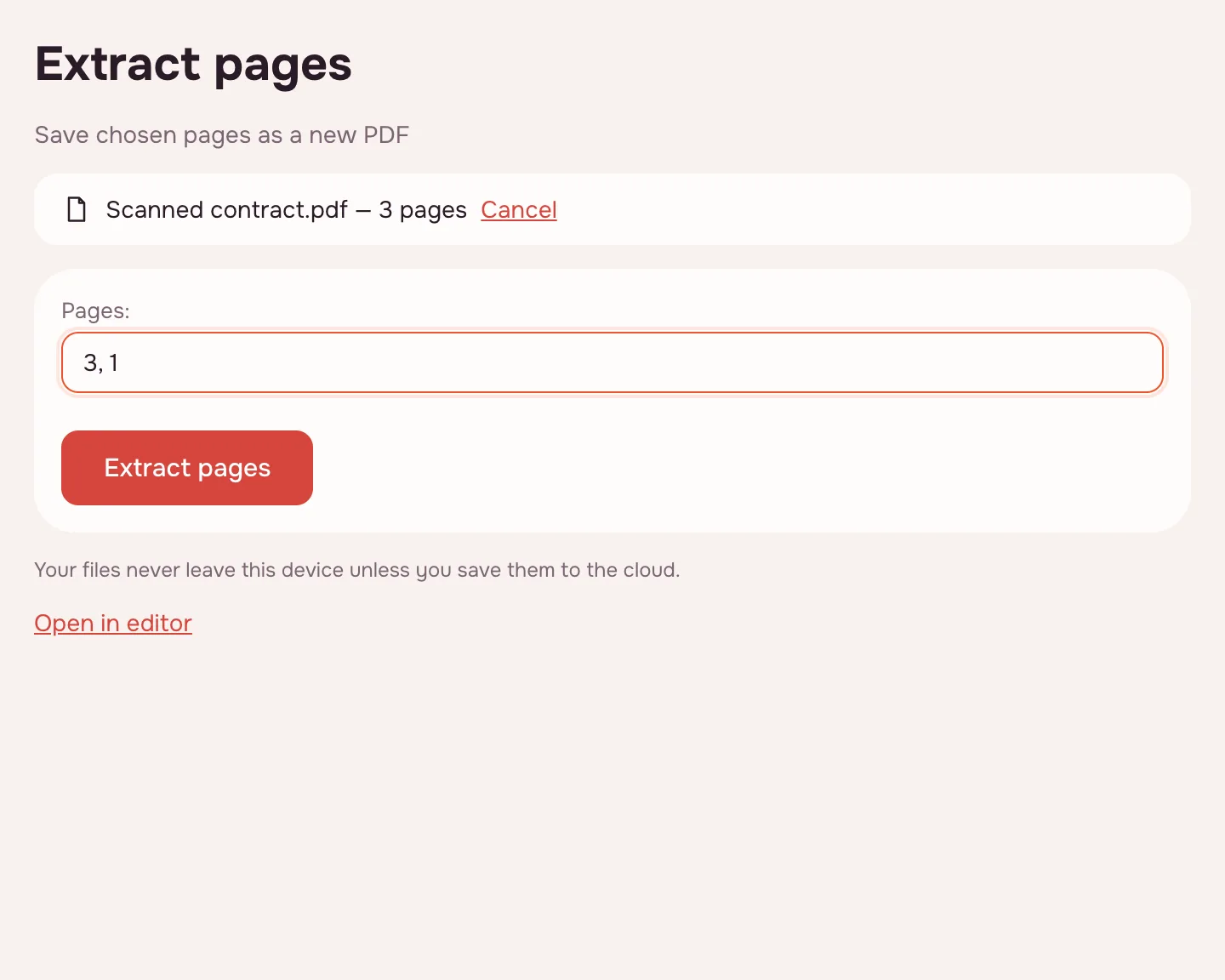
Click “Extract pages”
The tool builds the new PDF and shows the result screen. The file is named after the source plus its pages, such as “Report (pages 5-9).pdf”. Progress is displayed, and the job can be cancelled.
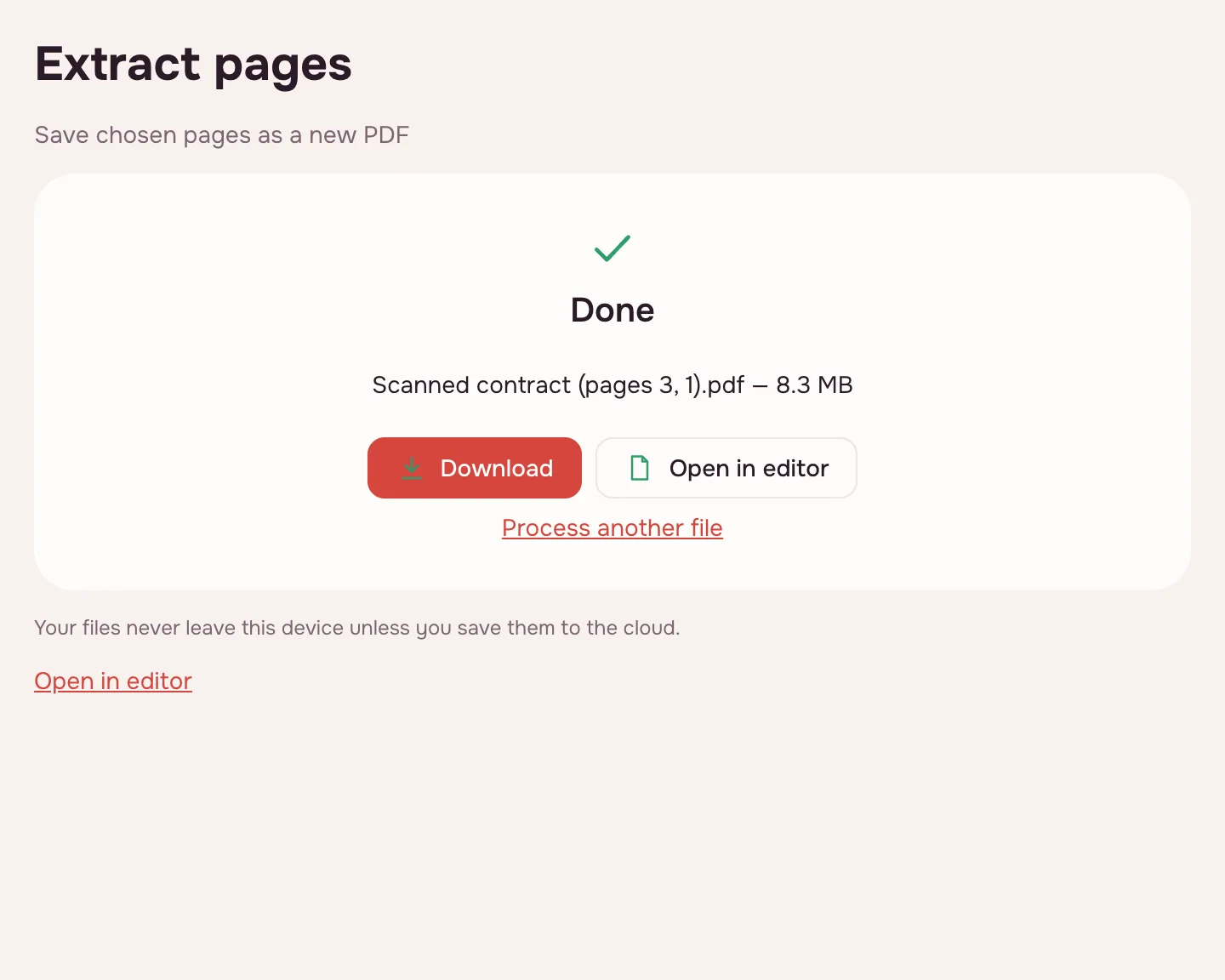
Download the new PDF
Click “Download”. The original document is not changed, so you can open it again and extract a different set of pages.
How to extract pages from a PDF
Pages are numbered from one and refer to the original file. Separate single pages with commas, write runs with a hyphen, and use “12-” for page 12 to the end. The order in the field is the order of the pages in the new document.
| You type | The new PDF contains |
|---|---|
| 3 | Page 3 only |
| 5-9 | Pages 5 through 9 |
| 8, 1-3 | Page 8, then pages 1, 2 and 3 |
| 9-5 | Pages 9 down to 5, in reverse |
| 12- | Page 12 to the end of the document |
What the tool does
- Pages are copied without recompression: text stays text and images are not re-saved.
- You set the order: “8, 1-3” puts page 8 first, and “9-5” reverses a range.
- The same page can be listed twice, for example when a form is needed for several people.
- Document properties, including the title and author, carry over to the new file.
- Comments come along, form values are printed onto the page (the fields themselves are no longer editable), and links between extracted pages keep working.
When you need it
- Job applications: send the two work samples a posting asks for instead of the whole portfolio.
- College applications: pull one transcript or certificate out of a combined file.
- Tax season: save a single statement page for your records or your accountant.
- E-filing portals: upload only the pages a form asks for, in the order it expects.
Save one page of a PDF
To save one page of a PDF, type its number, click “Extract pages” and download the result: you get a one-page PDF named after the source and the page. Nothing else from the document is included, and the original stays untouched.
If it is easier to list what you do not need, delete those pages instead. When the whole document has to be divided into parts, split the PDF — every part arrives in one ZIP.
Extract, delete or split
Extracting keeps the pages you choose and builds one new file from them. Deleting removes the chosen pages from a copy and keeps everything else. Splitting cuts the whole document into parts and hands them over as a ZIP. For a single section, extracting is usually the shortest route; for cleaning up unwanted sheets, deleting is.
Limitations
The tool extracts pages, not text and not pictures. To get the words, convert the PDF to text; to save pages as images, convert the PDF to JPG.
A PDF can be up to 100 MB and 1,000 pages. Password-protected files open if you know the password, and the new file is saved without one. A page's printed number may differ from its position in the file, for example when the cover is not numbered.
Is it safe?
The document is opened and processed in your browser on your own device, so it is never uploaded. Statements, contracts and scanned IDs stay with you. The new file reaches Zotu cloud only if you click “Save to cloud”, and saved files are kept in the EU/US under GDPR.
On phone and desktop
The tool runs in any modern browser on Windows, macOS, Android and iPhone, with nothing to install. On a phone, pick the PDF from Files or Downloads, type the pages and save the result back there to share it by message or e-mail.
FAQ
Support: [email protected]
How can I extract pages from a PDF?
Open the file on this page, type the pages or ranges in the field and click “Extract pages”. For example, “3” takes one page and “5-9” takes a run. Then download the new PDF: it contains only those pages, in the order you listed, and the original is unchanged.
How do I save one page of a PDF?
Type the page number, for example “7”, and click “Extract pages”. You get a separate one-page PDF named after the source and the page, and the rest of the document is left out. The original file stays on your device untouched.
Can you save one page of a PDF?
Yes. A single page can be pulled out into its own file without installing anything. The page is copied without recompression, so its text and images are as sharp as in the original. If you need several pages, list them together in the same field.
How do I save only one page of a PDF?
Leave the field with just that page's number and run the tool. Everything else stays out of the new file, and the source document is not modified. This works for a contract page, a certificate or a single receipt from a long combined scan.
How do I save one page of a PDF as a separate file?
Extract the page and click “Download”: the result is its own PDF, named after the original with the page in brackets. There is no need to split the whole document first. If you later need another page, open the original again and extract it the same way.
How do I save one page of a PDF as an image?
This tool makes a PDF, not an image. Extract the page first, then open PDF to JPG and convert the one-page file — you can choose JPEG or PNG and a resolution. That keeps the new PDF small and gives you a picture of just that page.
Are comments and filled-in fields kept?
Comments carry over as they are. Form values are kept too, but printed onto the page, so the fields can no longer be edited — fill in the form before extracting. Document properties such as the title and author move to the new file. Links between the extracted pages keep working. Links to pages that were not extracted have nowhere to go in the new document.
Is it free? Is there a watermark?
It is free, with no sign-up and no watermark. Nothing is added to the new PDF — no logo, no stamp and no extra sheet, just the pages you chose. The limits are on the source file: up to 100 MB and 1,000 pages.
Is it safe to upload documents?
Nothing is uploaded: the document is processed in your browser on your own device. Contracts, statements and personal scans never reach a server. The new file goes to cloud storage only if you click “Save to cloud”, and saved files are kept in the EU/US under GDPR.
More PDF tools
Compress PDF
Make a PDF smaller for e-mail or an upload form, with three quality levels.
Merge PDF
Combine several PDFs and images into one file, in the order you choose.
Split PDF
Split a PDF into single pages or fixed-size parts and download them as one ZIP.
Rotate PDF
Turn PDF pages 90° or 180° — the whole document or just the pages you pick.
Delete PDF pages
Remove the pages you don’t need and save a new PDF with everything else intact.
Organize PDF
Reorder PDF pages by dragging thumbnails, rotate, delete or insert pages.
Crop PDF
Trim the same margin from all four sides of your PDF pages.
PDF to text
Get the text out of a PDF as TXT, HTML or RTF in the right reading order.
Extract pages from a PDF online
Save the pages you choose as a new PDF, in the order you list them.
Open editor