Organize PDF pages and put them in the right order
Organize a PDF when a scan comes back out of order or an application must follow an exact checklist. Click “Choose file”, then “Organize pages”: the document opens as a grid of thumbnails, and dragging sets the new order.
- Files stay on your device
- No sign-up
- No watermark
- Up to 100 MB
- Works with
- .jpg
- .png
- .docx
- .xlsx
How to organize PDF pages
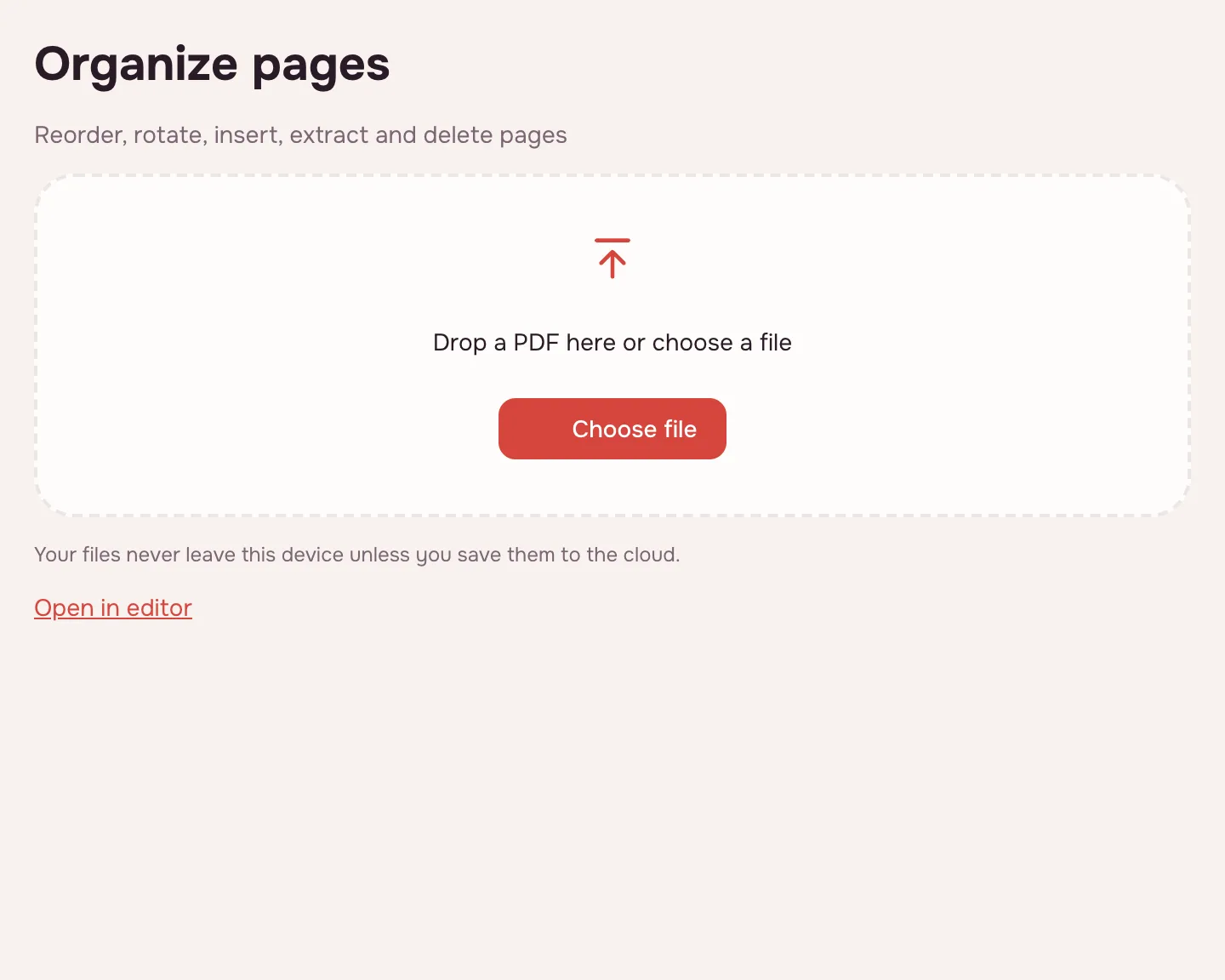
Choose your file
Click “Choose file” or drop the PDF onto the box — it opens in your browser.
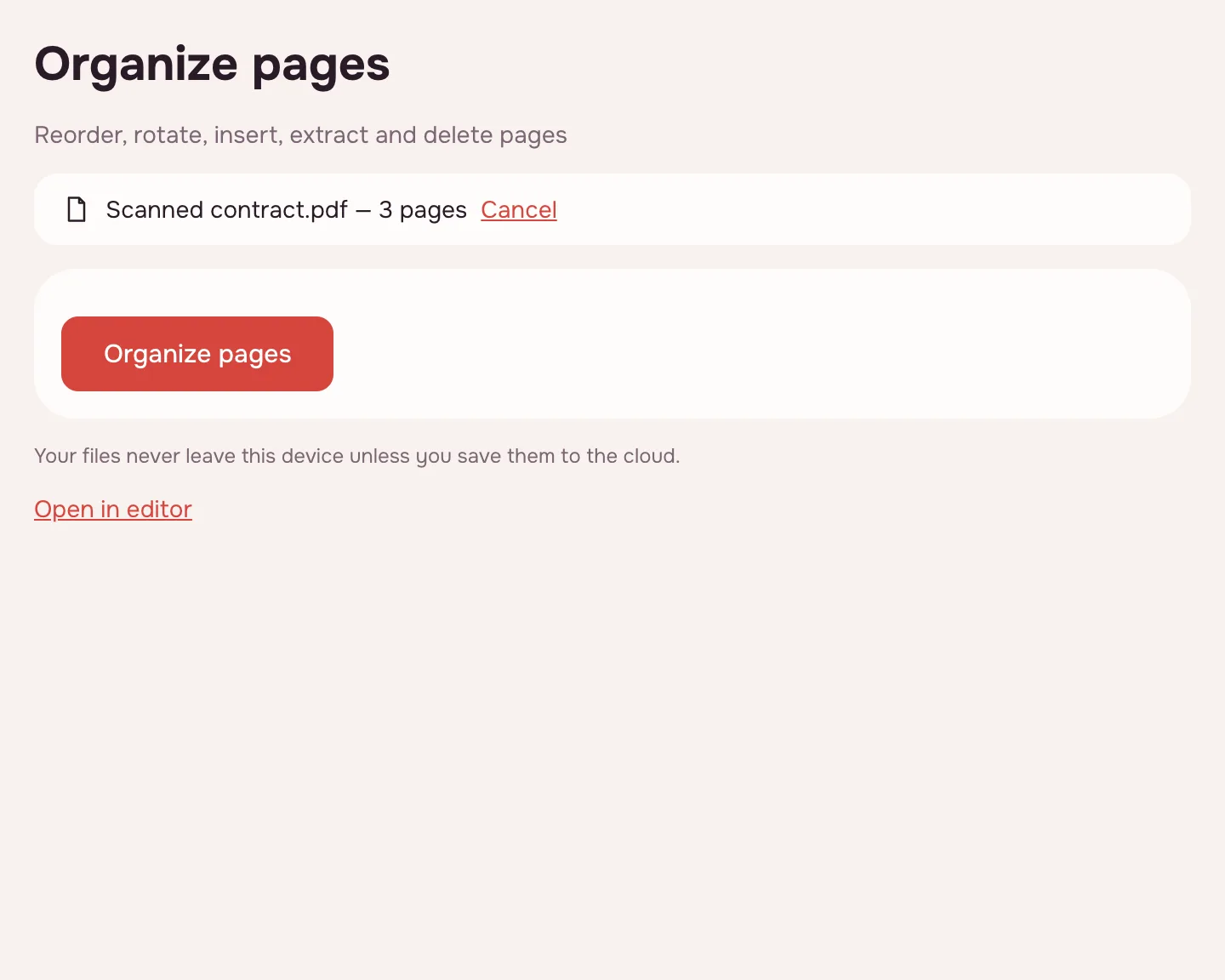
Click “Organize pages”
The button under the file name opens the editor with a grid of thumbnails for every page.
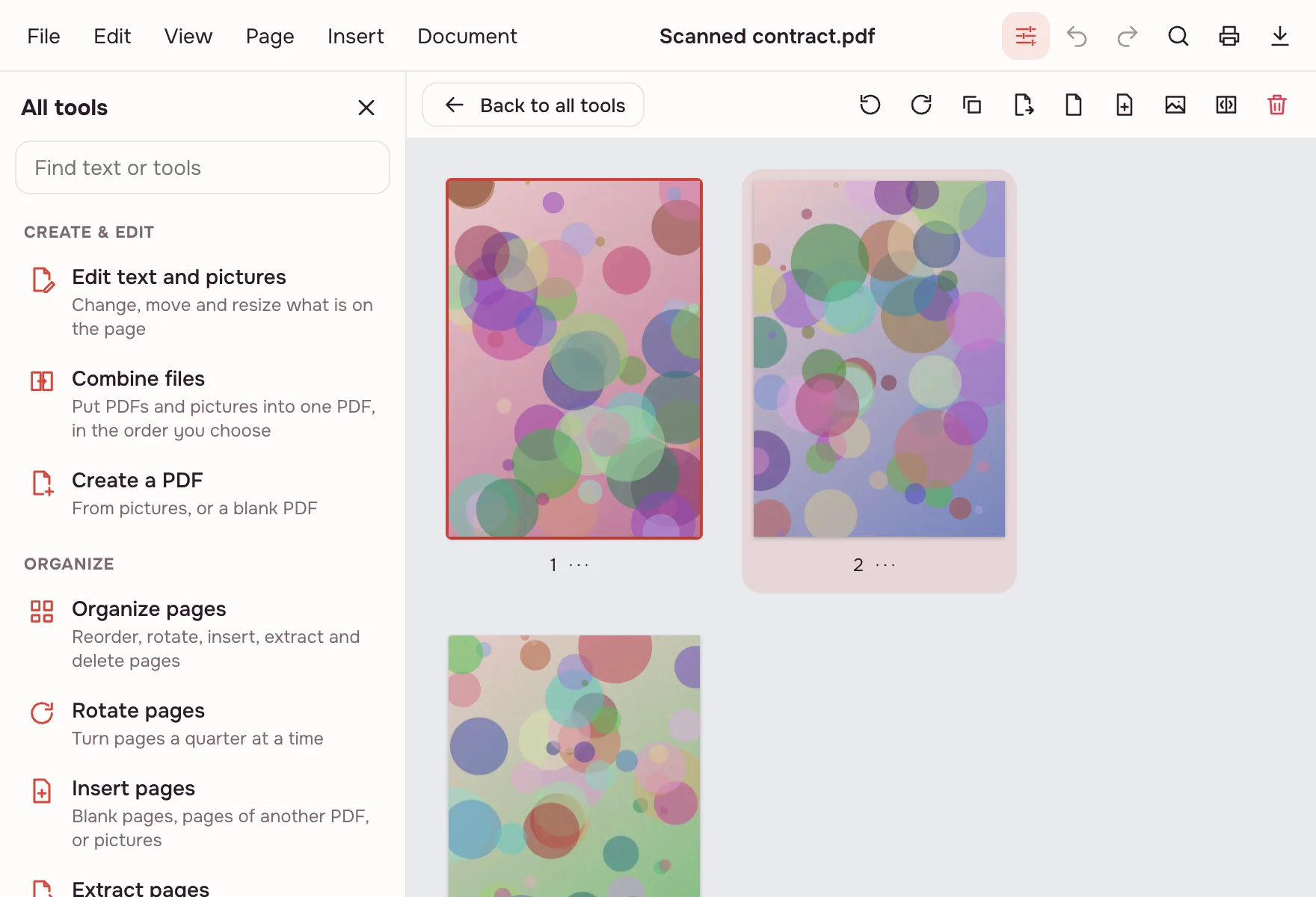
Drag the thumbnails
Drag a thumbnail to where it belongs; the other pages shift to make room. Select several pages to move them together.
Save the document
Check the order, then save and download the file. Every step can be undone until you save.
What the tool does
- Reorder pages by dragging thumbnails with a mouse or a finger.
- Rotate a page a quarter turn when a scan came out sideways.
- Delete pages you do not need and insert blank ones.
- Insert pages from another PDF or JPG and PNG pictures.
- Extract chosen pages as a new PDF, leaving the original alone.
When you need to organize a PDF
- Job applications: put a résumé, cover letter and references in the order the posting asks for.
- College applications: add a missing transcript or certificate where it belongs.
- Scans: turn sideways pages upright and drop blank backs.
Reorder PDF pages without changing the content
Organizing changes the order, rotation and set of pages — not what is printed on them. The editor shows thumbnails, so you can check the sequence against a checklist before saving.
To change the text rather than the position, use the PDF editor.
Rearrange PDF pages and delete what you do not need
The same grid does more than reorder. Rotate a sideways scan, delete a blank back, or insert an empty page or pages from another file. Select pages and extract them as a new PDF.
For a single job, use delete pages or extract pages.
Limitations
There is no automatic sorting by content: you set the order yourself. One document can be up to 100 MB and 1,000 pages, and an inserted picture up to 20 MB. Password-protected PDFs work once you enter the password; the saved copy has no password.
Is it safe to organize PDFs online?
The file is opened and processed in your browser on your own device and is never uploaded, so IDs, tax forms and contracts stay with you. It only reaches Zotu cloud if you click “Save to cloud” after signing in; saved files are kept in the EU/US under GDPR.
Organize PDFs on Mac, Windows, iPhone and Android
The tool runs in any up-to-date browser, with nothing to install. On a phone, pick the PDF from Files or Downloads and drag the thumbnails with your finger.
FAQ
Support: [email protected]
Can I rearrange PDF pages?
Yes. Add the PDF, click “Organize pages” and drag the thumbnails into order. You can also rotate, delete and insert pages, and select several at once. Nothing is saved until you download the file.
How do I organize PDF files?
Open the file and click “Organize pages”: the document appears as a grid of thumbnails. Drag pages to new positions, rotate or remove the ones you do not need, then save and download. Everything runs in your browser.
How do I reorder PDF pages?
Click “Choose file”, then “Organize pages”, and drag a thumbnail to its new place. The other pages shift automatically. Select several thumbnails if a block should move together, check the order, and download the saved file.
How do I rearrange pages in a PDF?
Add the document, open the thumbnail grid and drag pages around. You can rotate a page, delete blank pages or insert pages from another PDF or pictures. Every action can be undone until you save.
Can you reorder PDF pages on a Mac?
Yes. Open this page in Safari, Chrome or another browser on macOS, choose the PDF and click “Organize pages”. Drag thumbnails with the trackpad or mouse, then save and download. No app is needed, and the file is processed on your Mac.
How do I reorder PDF pages on iPhone?
Open the page in your iPhone browser, pick the PDF from Files or Downloads and tap “Organize pages”. Drag the thumbnails with your finger, then save and download the file back to Files. Nothing is uploaded.
Can I insert a page from another PDF?
Yes. In the organizing grid you can insert pages from another PDF, a blank page or a JPG or PNG picture — handy for a missing exhibit in a contract. To combine whole files, merge the PDFs.
Is it free? Is there a watermark?
It is free, with no sign-up and no watermark. Nothing is added to your pages — no logo, no stamp and no extra sheet. Limits: up to 100 MB and 1,000 pages.
Is it safe to upload documents?
Nothing is uploaded: the file is processed in your browser on your own device. IDs, tax forms and contracts never reach a server. It goes to cloud storage only if you click “Save to cloud” after signing in, under GDPR.
More PDF tools
Compress PDF
Make a PDF smaller for e-mail or an upload form, with three quality levels.
Merge PDF
Combine several PDFs and images into one file, in the order you choose.
Split PDF
Split a PDF into single pages or fixed-size parts and download them as one ZIP.
Rotate PDF
Turn PDF pages 90° or 180° — the whole document or just the pages you pick.
Delete PDF pages
Remove the pages you don’t need and save a new PDF with everything else intact.
Extract PDF pages
Save the pages you choose as a new PDF, in the order you list them.
Crop PDF
Trim the same margin from all four sides of your PDF pages.
PDF Editor
Change text and pictures on the page, add a signature, comments and fill in forms.
Organize PDF pages and put them in the right order
Reorder PDF pages by dragging thumbnails, rotate, delete or insert pages.
Open editor