Rotate PDF pages online and save the orientation
Rotate PDF pages when a scanner app saves a landscape sheet sideways or the back of a duplex copy comes out upside down. Choose a direction, list the pages if you need only some, and click “Rotate pages”: the rotation is written into the file, so the document opens the right way up wherever it goes.
- Files stay on your device
- No sign-up
- No watermark
- Up to 100 MB
- Works with
- .jpg
- .png
- .docx
- .xlsx
How to rotate a PDF and save it
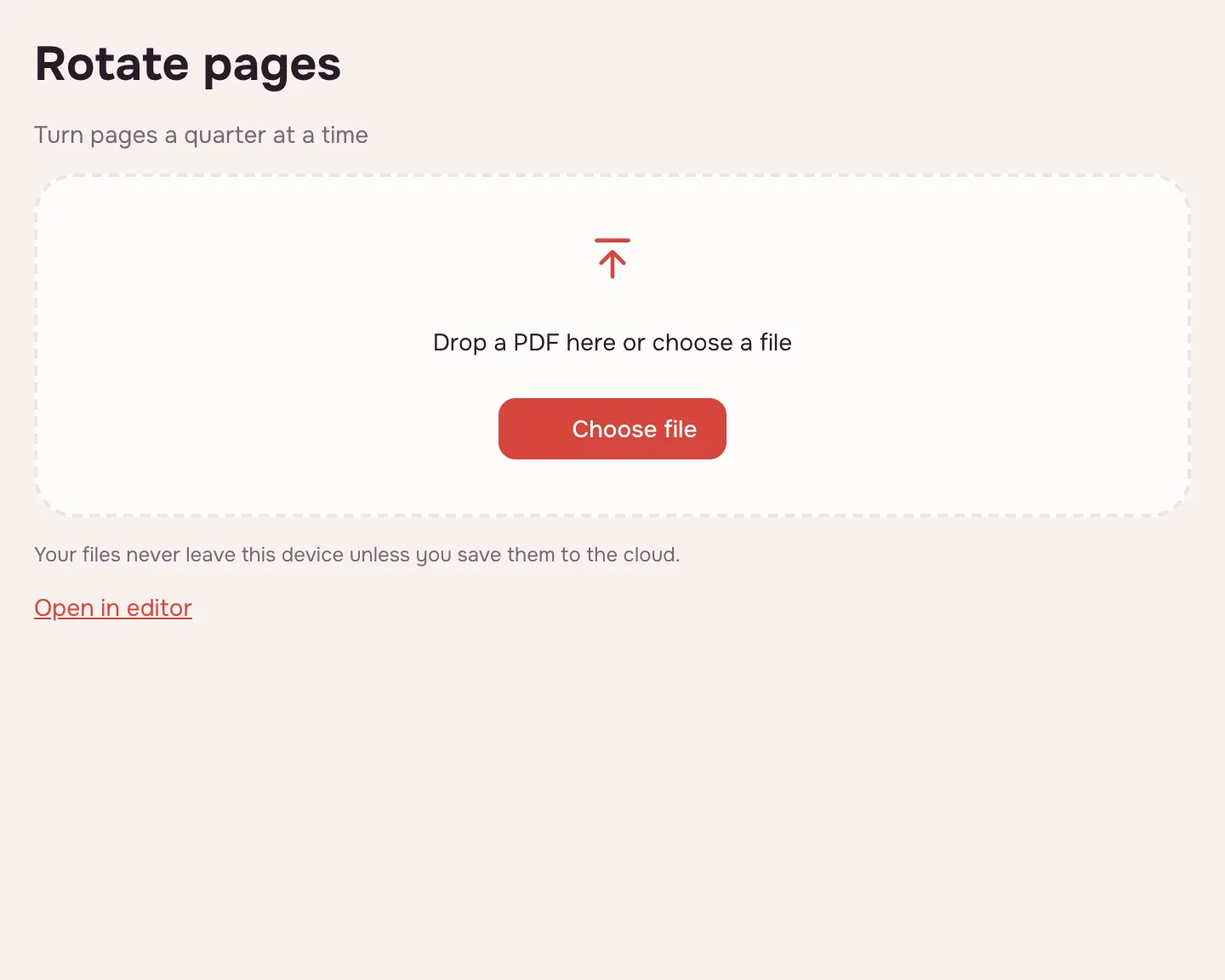
Choose your file
Click “Choose file” or drop the PDF onto the page. It opens in your browser and shows its page count, so you can check the numbers before typing them.
Pick the rotation
Choose “Rotate clockwise”, “Rotate counterclockwise” or “180°”. Leave the page field empty to turn the whole document, or enter pages such as “2, 5-7” to fix only those sheets.
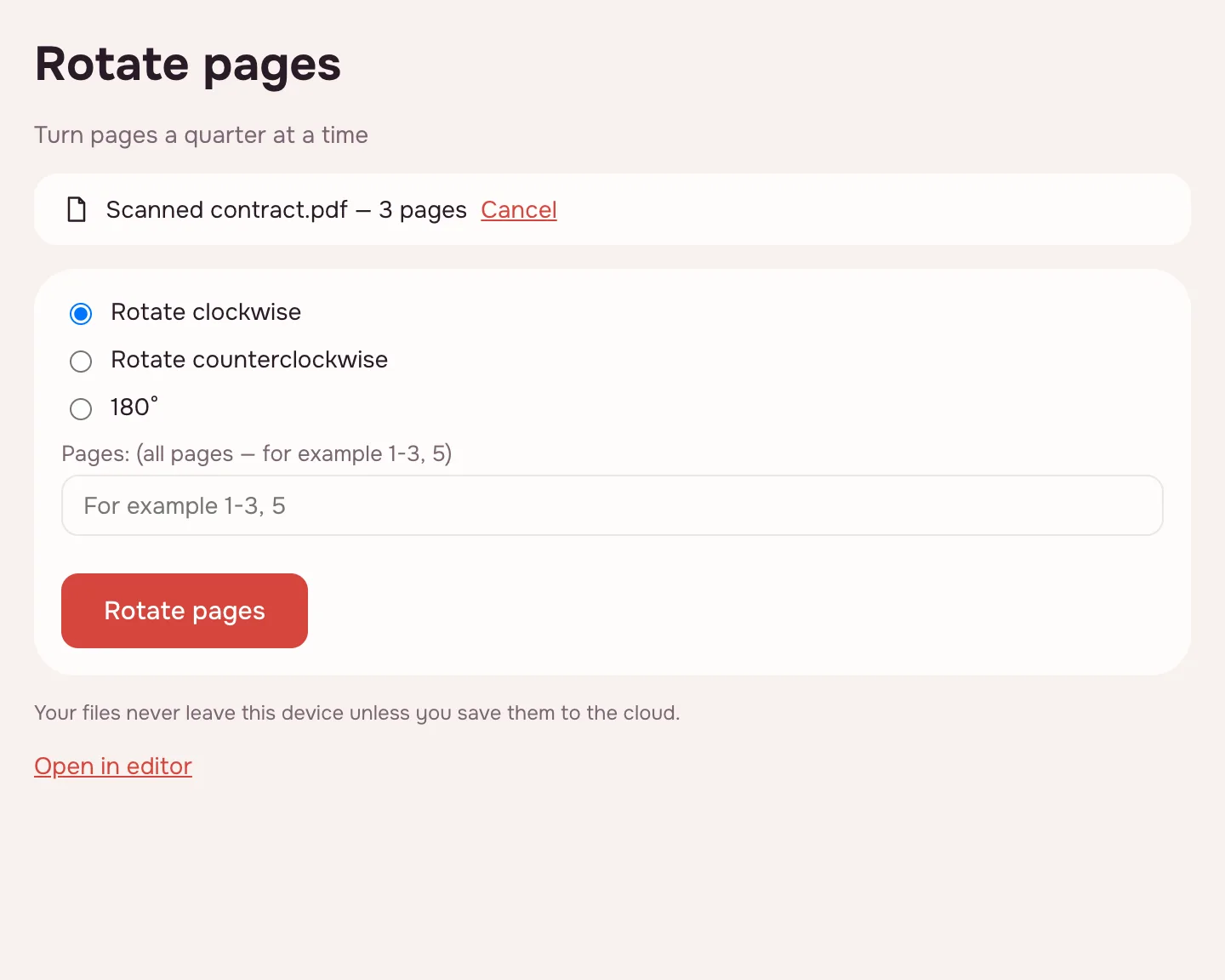
Click “Rotate pages”
The tool writes the new rotation into the file and shows the result screen. Progress is displayed, and a long job on a big document can be cancelled.
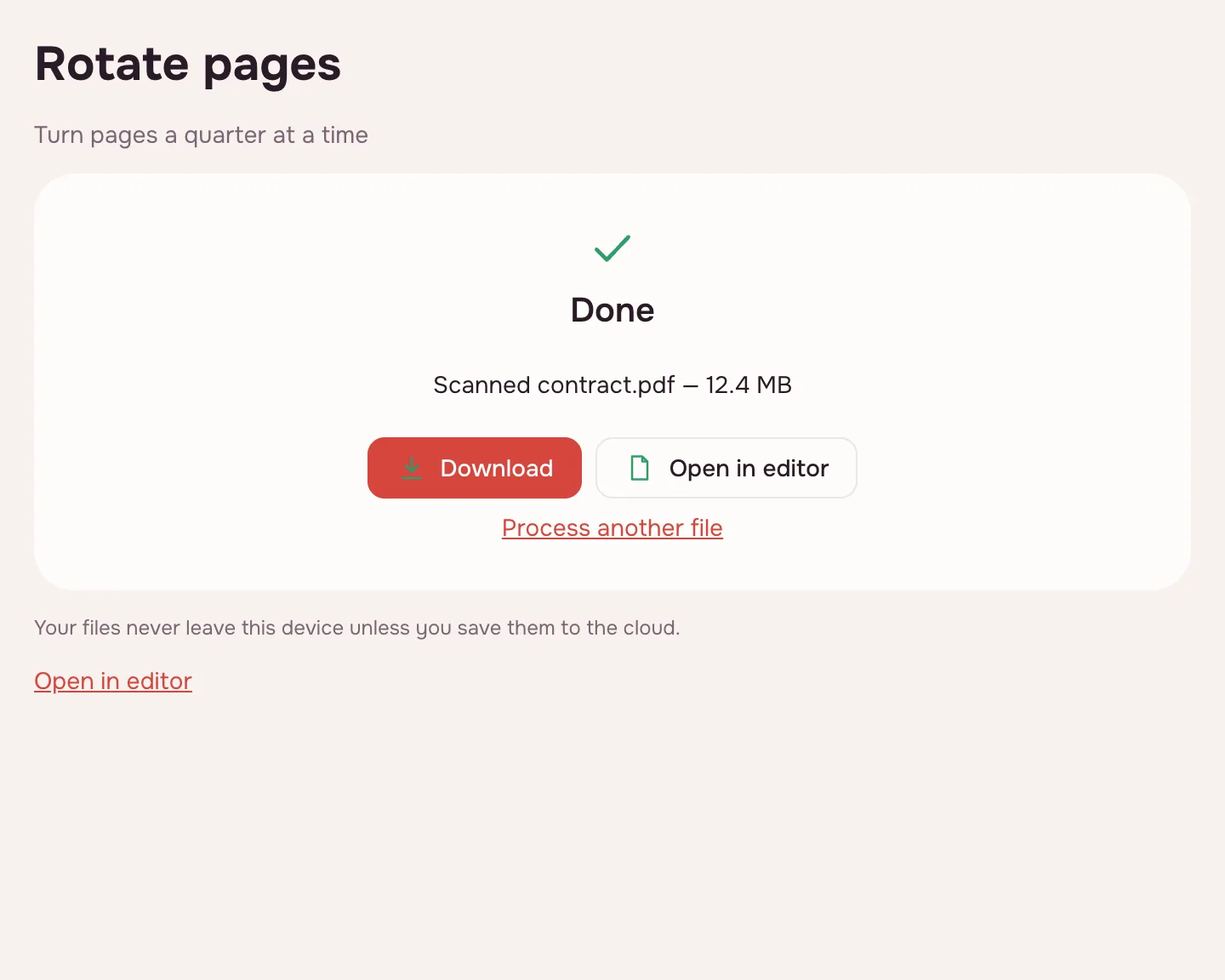
Download the file
Click “Download”, save it to the cloud after signing in, or open it in the editor to keep working. The pages stay turned in every PDF viewer.
How to rotate a PDF
Pick the direction by looking at the top of the page. If the text reads bottom to top, the top points left and clockwise will set it right. If it reads top to bottom, the top points right and counter-clockwise is the one. Upside-down sheets need the separate “180°” button.
| Page looks like | Choose | Result |
|---|---|---|
| Top points left | “Rotate clockwise” | Text reads left to right again |
| Top points right | “Rotate counterclockwise” | Page sits upright |
| Upside down | “180°” | Top is back on top |
| Wide table squeezed into portrait | Either direction | A landscape page for the table |
Rotate PDF pages permanently
The turn is stored in the page's rotation attribute inside the PDF, not in the settings of whatever viewer you use. That is why it survives the download and looks the same to a recruiter, a college admissions office or you on a phone.
The content itself is not re-encoded. Text stays selectable and searchable and turns with the page; images and fonts are not re-saved, so quality and file size do not change. If the turned sheet still has wide margins, crop the PDF afterwards.
Rotate one page or the whole document
An empty page field means every page. To turn only part of the file, list numbers separated by commas and runs with a hyphen, such as “2, 5-7”. Pages are counted from one, as in any viewer.
When different pages need different directions, run the tool twice or open the document in the editor, where each thumbnail rotates on its own and pages can be reordered or deleted too. Every step can be undone until you save. If the sideways pages come from several files, merge them into one PDF and turn everything in a single pass.
Why pages end up sideways
- Phone scans: the scanner app saved a landscape document in portrait orientation.
- Duplex scans: the back sides came out upside down — turn just the even pages by 180°.
- Drawings and plans: a wide sheet inside a portrait report is easier to read in landscape.
- Before sending or printing: the recipient sees an upright document and does not have to rotate anything.
Limitations
The tool turns pages by a quarter — 90° either way or 180°. There is no field for an arbitrary angle, and it will not straighten a scan that is skewed by a degree or two; rescan that page more squarely or straighten it in the scanner app.
A PDF can be up to 100 MB and 1,000 pages. A password-protected file opens if you know the password, and the result is saved without one. For a long document with mixed orientations, the editor is quicker: organize PDF pages there.
Is it safe?
The file is opened and processed in your browser on your own device and is not uploaded. IDs, tax forms and contracts stay with you. A copy reaches Zotu cloud only if you click “Save to cloud” after signing in, and saved files are kept in the EU/US under GDPR.
On phone and desktop
The tool runs in any modern browser on Windows, macOS, Android and iPhone, with nothing to install. On a phone, pick the PDF from Files or Downloads, set the rotation and save the result back there.
FAQ
Support: [email protected]
How do I rotate a PDF?
Open the file on this page, choose a direction and click “Rotate pages”. The rotation is written into the PDF itself, so it stays after you download the file and shows in any viewer. Leave the page field empty for the whole document, or type a range such as “2, 5-7” for selected sheets.
Can you rotate a PDF?
Yes. Pages can be turned 90° clockwise or counter-clockwise, or 180°, either all at once or only the ones you list. The content is not re-encoded, so text stays sharp and the file size does not change. A password-protected PDF works if you know the password.
Can you rotate pages in a PDF?
Yes, including individual pages. Type their numbers in the page field, for example “4” for one sheet or “2, 5-7” for several, and click “Rotate pages”. The other pages stay exactly as they were. For different directions on different pages, run the tool twice.
How do I rotate pages in a PDF?
Click “Choose file”, add the document and pick “Rotate clockwise”, “Rotate counterclockwise” or “180°”. If only some pages are wrong, list them in the page field; an empty field means every page. Then click “Rotate pages” and download the result.
Can you permanently rotate a PDF?
Yes. The rotation is saved as the page's rotation attribute inside the file rather than as a temporary view setting, so it survives the download and appears in every PDF viewer. Some viewers only remember a turn for themselves; this tool changes the document itself.
How do I rotate the orientation of a PDF?
Use “Rotate clockwise” or “Rotate counterclockwise”. A quarter turn switches a portrait sheet to landscape or back, which suits wide tables and drawings. If the whole document needs the other orientation, leave the page field empty and turn every page at once.
How do I rotate a PDF and save the orientation?
After choosing the direction, click “Rotate pages”, then “Download” on the result screen. The saved file carries the new orientation, so you do not need to rotate it again in a viewer. You can also save it to the cloud after signing in or open it in the editor.
Is it free? Is there a watermark?
It is free, with no sign-up and no watermark. Nothing is added to your pages — no logo, no stamp and no extra sheet, just your document turned the way you chose. The limits are on the file: up to 100 MB and 1,000 pages.
Is it safe to upload documents?
Nothing is uploaded: the file is opened and processed in your browser on your own device. Scans of IDs, contracts and work papers never reach a server. The result goes to cloud storage only if you click “Save to cloud”, and saved files are kept in the EU/US under GDPR.
More PDF tools
Compress PDF
Make a PDF smaller for e-mail or an upload form, with three quality levels.
Merge PDF
Combine several PDFs and images into one file, in the order you choose.
Split PDF
Split a PDF into single pages or fixed-size parts and download them as one ZIP.
Delete PDF pages
Remove the pages you don’t need and save a new PDF with everything else intact.
Extract PDF pages
Save the pages you choose as a new PDF, in the order you list them.
Organize PDF
Reorder PDF pages by dragging thumbnails, rotate, delete or insert pages.
Crop PDF
Trim the same margin from all four sides of your PDF pages.
PDF Editor
Change text and pictures on the page, add a signature, comments and fill in forms.
Rotate PDF pages online and save the orientation
Turn PDF pages 90° or 180° — the whole document or just the pages you pick.
Open editor