Convert PDF to JPG and save pages as images
Convert PDF to JPG when a page from a report belongs in a slide deck, a chat or a social post. Pick JPEG or PNG, choose 72, 144 or 300 dpi and download the pages as images that open anywhere — no PDF viewer needed.
- JPG & PNG
- 72, 144 & 300 dpi
- No sign-up
- Files stay on your device
- Works with
- .jpg
- .png
- .docx
- .xlsx
How to convert PDF to JPG
Choose your file
Click “Choose file” or drop the PDF onto the page. It opens in your browser and shows its page count.
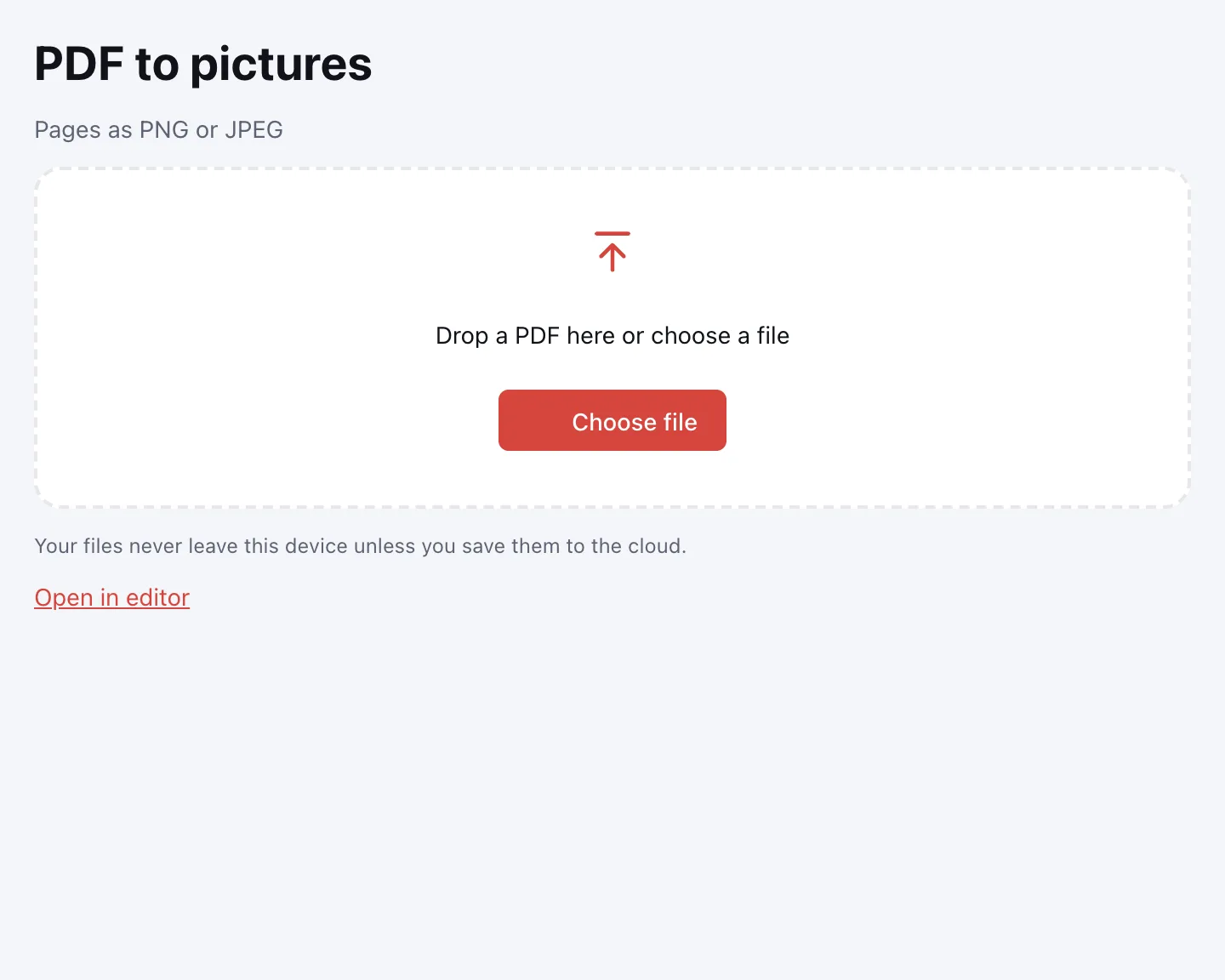
Pick the format and resolution
Choose JPEG or PNG under “Format”, then 72, 144 or 300 dpi under “Resolution”. Leave the page field empty to convert every page, or type a range such as “1-3, 5”.
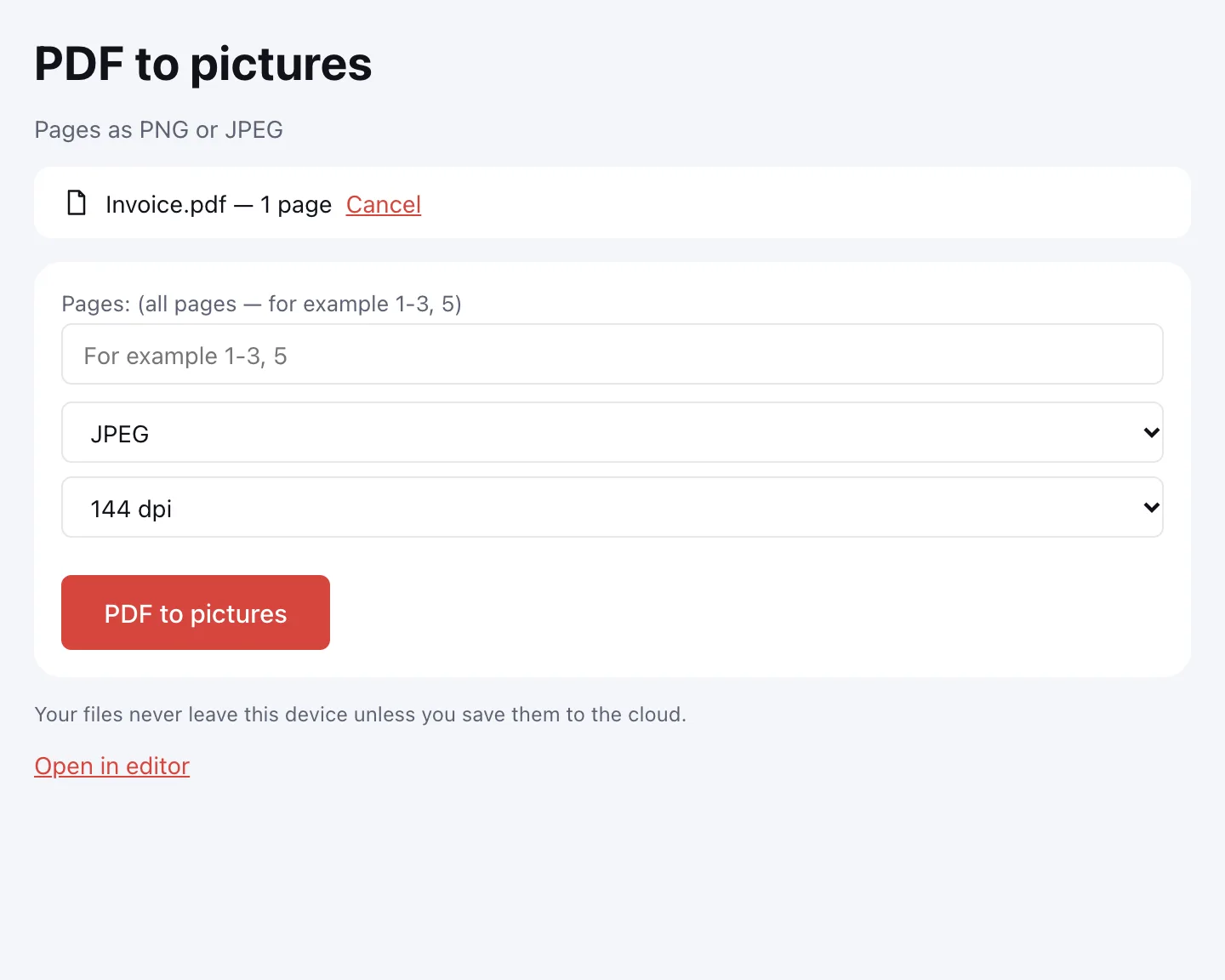
Click “PDF to pictures”
One page downloads as a single image; several pages arrive as one ZIP. File names follow the PDF name and page number.
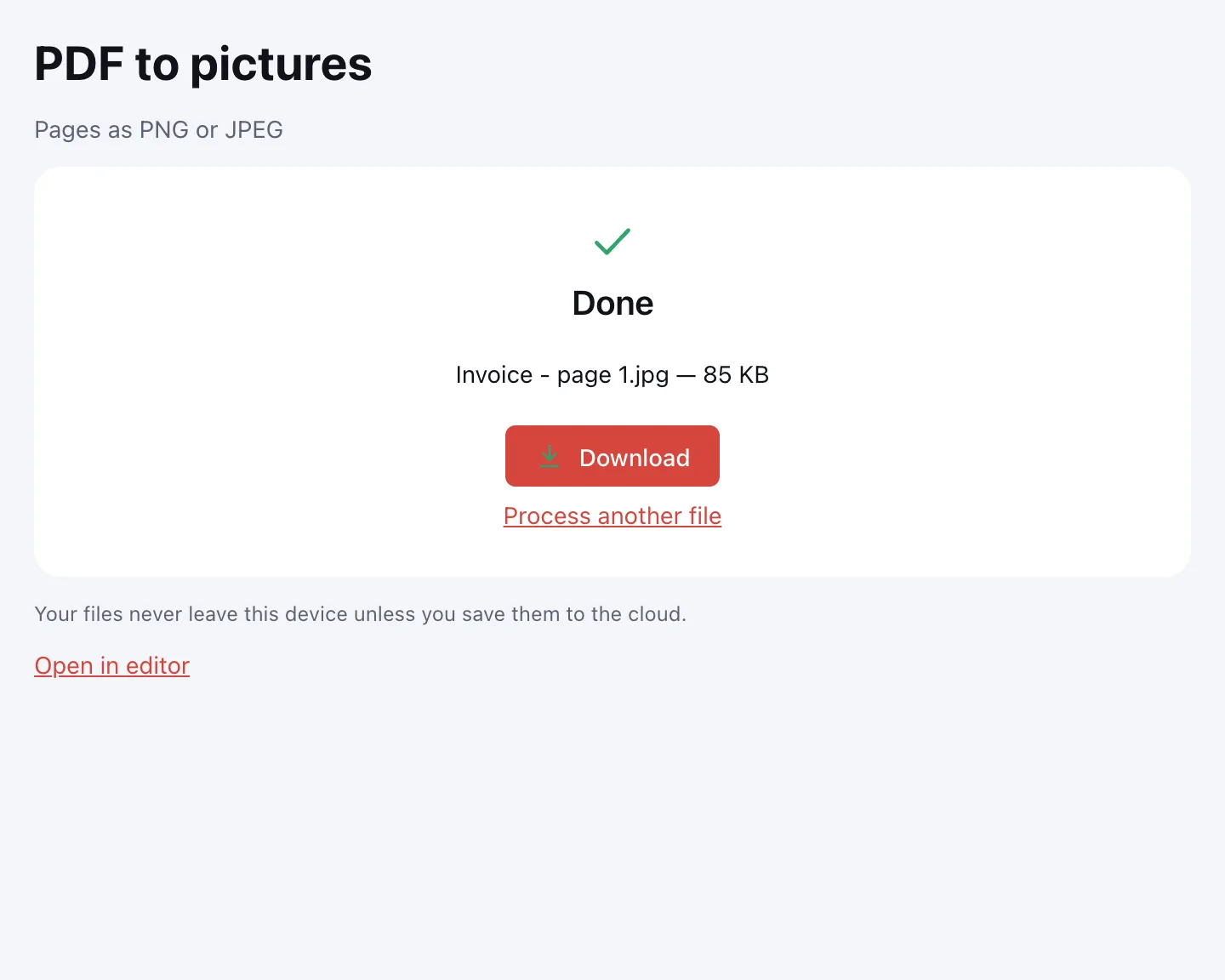
Download the images
“Download” saves the image or the ZIP straight to your device.
What PDF to JPG does
The tool saves pages as PNG or JPEG at 72, 144 or 300 dpi, for the whole document or chosen pages.
- One page becomes one image; several pages come as a single ZIP.
- Each page is rendered whole, exactly as on screen.
- Files are named after the source PDF and the page number.
- Password-protected PDFs ask for the password first.
PDF to JPG or PDF to PNG
Both formats keep the whole page; the difference is compression and the job at hand.
| Format | Best for | What happens to the file |
|---|---|---|
| JPEG | Photos, scans, pages with coloured panels | Several times lighter; losses are hard to see |
| PNG | Small text, tables, charts, drawings | Every pixel kept; the file is larger |
Which resolution to use
Resolution sets how many pixels fall on each inch of the page. Higher values give a larger image and take longer to render.
| Resolution | Page size | Best for |
|---|---|---|
| 72 dpi | A4 about 600 × 840 px | Previews, chats, social posts |
| 144 dpi | twice as large on each side | Laptop and phone screens, slides |
| 300 dpi | A4 about 2480 × 3508 px; US Letter about 2550 × 3300 px | Printing, print shops, zooming into detail |
When you need a page as an image
Need one sheet? Extract the pages into a separate PDF first — the ZIP stays smaller.
- Job applications: drop a portfolio page into an e-mail.
- College applications: put a transcript page into a slide.
- Tax season: send one statement page to your accountant in a chat.
- Printing: hand a 300 dpi page to a print shop as an image.
PDF to image: the whole page, not the embedded photos
PDF to image here means rendering the page, not extracting the pictures embedded in the file. The tool draws the sheet as a viewer shows it and does not pull out the original photos. For an embedded photo, convert at 300 dpi and crop it in an image editor.
To put the page into a deck, convert the PDF to PPTX.
Extract PDF pages to JPG
Leave the page field empty and choose JPEG, or type the pages you want, such as “2-4”. Each selected page becomes its own image, and a multi-page result arrives as a ZIP. The original PDF is not changed.
Merge PDF and JPG
This page goes one way only. To put images back into a document, use JPG to PDF: each picture becomes a page. To add images to an existing PDF, the Merge PDF tool keeps PDFs and pictures in one list.
PDF to JPG quality
PNG keeps every pixel, so it is the lossless choice for small type and thin lines. JPEG re-encodes the page and is much lighter; at 300 dpi the difference is hard to spot. Text in the image is no longer text, so keep the original PDF if you may need to copy it.
Limitations
The tool does not extract embedded images in their original form and cannot output WebP. A PDF can be up to 100 MB and 1,000 pages. Higher resolutions take longer, so for a long document at 300 dpi convert only the pages you need.
Is it safe?
Pages are rendered in your browser and nothing is uploaded. The images download straight to your device.
On phone and desktop
The converter runs in any modern browser on Windows, macOS, Android and iPhone. On a phone, pick the PDF from Files or Downloads.
FAQ
Support: [email protected]
How do I convert PDF to JPG?
Click “Choose file”, add your PDF and pick JPEG under “Format”. Set a resolution and, if needed, the pages you want, then click “PDF to pictures”. One page downloads as an image and several pages arrive as a ZIP, all rendered in your browser on your own device.
How do I save a PDF as PNG?
Choose PNG under “Format” before converting. PNG keeps every pixel without loss, which suits small text, tables and line drawings, though the files are larger than JPEG. Leave the page field empty for the whole document or type the pages you need.
How do I convert PDF to JPG on a Mac?
Open this page in any browser on macOS, click “Choose file” and select the PDF. Pick JPEG and a resolution, then click “PDF to pictures” and download the result. No software needs to be installed, and the pages are rendered on your Mac rather than uploaded.
How do I extract PDF pages as JPG?
Type the pages in the page field, for example “2-4”, and choose JPEG. Only those pages are converted, each into its own image, and a multi-page selection arrives as one ZIP. Leave the field empty to convert every page of the document.
What resolution should I use for printing?
Choose 300 dpi for printing, print shops or zooming into fine detail. 144 dpi is plenty for laptop and phone screens, and 72 dpi keeps previews and chat images small. Higher resolutions produce larger files and take longer to render.
Does converting PDF to JPG lose quality?
JPEG re-encodes the page and loses a little detail, though at 300 dpi it is hard to see. PNG is lossless and keeps every pixel, so use it for small type, charts and drawings. Text inside either image is no longer selectable, so keep the original PDF as well.
Is it free? Is there a watermark?
It is free, with no sign-up and no watermark. Nothing is added to your images — no logo and no extra sheet, just the pages you converted. The limits are on the document: up to 100 MB and 1,000 pages.
Is it safe to upload documents?
Nothing is uploaded: pages are rendered in your browser on your own device. Tax forms, IDs and contracts stay with you. The images download straight to your device, and no copy is kept anywhere else.
More PDF tools
JPG to PDF
Combine JPG and PNG pictures into one PDF, in the order you choose.
PDF to Word
Turn a PDF into an editable DOCX with headings, lists, tables and images.
PDF to Excel
Turn tables from a PDF into an XLSX workbook with numbers, amounts and dates as values.
PDF to PPT
Turn PDF pages into PPTX slides with editable text, pictures and tables.
PDF to text
Get the text out of a PDF as TXT, HTML or RTF in the right reading order.
OCR PDF
Add an invisible text layer to a scanned PDF so search, selection and copying work.
PDF to PDF/A
Check a document and save it as PDF/A-1b or PDF/A-2b for long-term archiving.
Extract PDF pages
Save the pages you choose as a new PDF, in the order you list them.
Merge PDF
Combine several PDFs and images into one file, in the order you choose.
Convert PDF to JPG and save pages as images
Save PDF pages as JPG or PNG images at the resolution you need.
Open editor