Delete pages from a PDF online
Delete PDF pages when a scan leaves blank backs, a draft cover sits in front of a final report, or a portal counts every sheet. Type the page numbers, click “Delete pages” and download a new file: the remaining pages keep their order and are not recompressed, and your original stays as it was.
- Files stay on your device
- No sign-up
- No watermark
- Up to 100 MB
- Works with
- .jpg
- .png
- .docx
- .xlsx
How to delete pages from a PDF
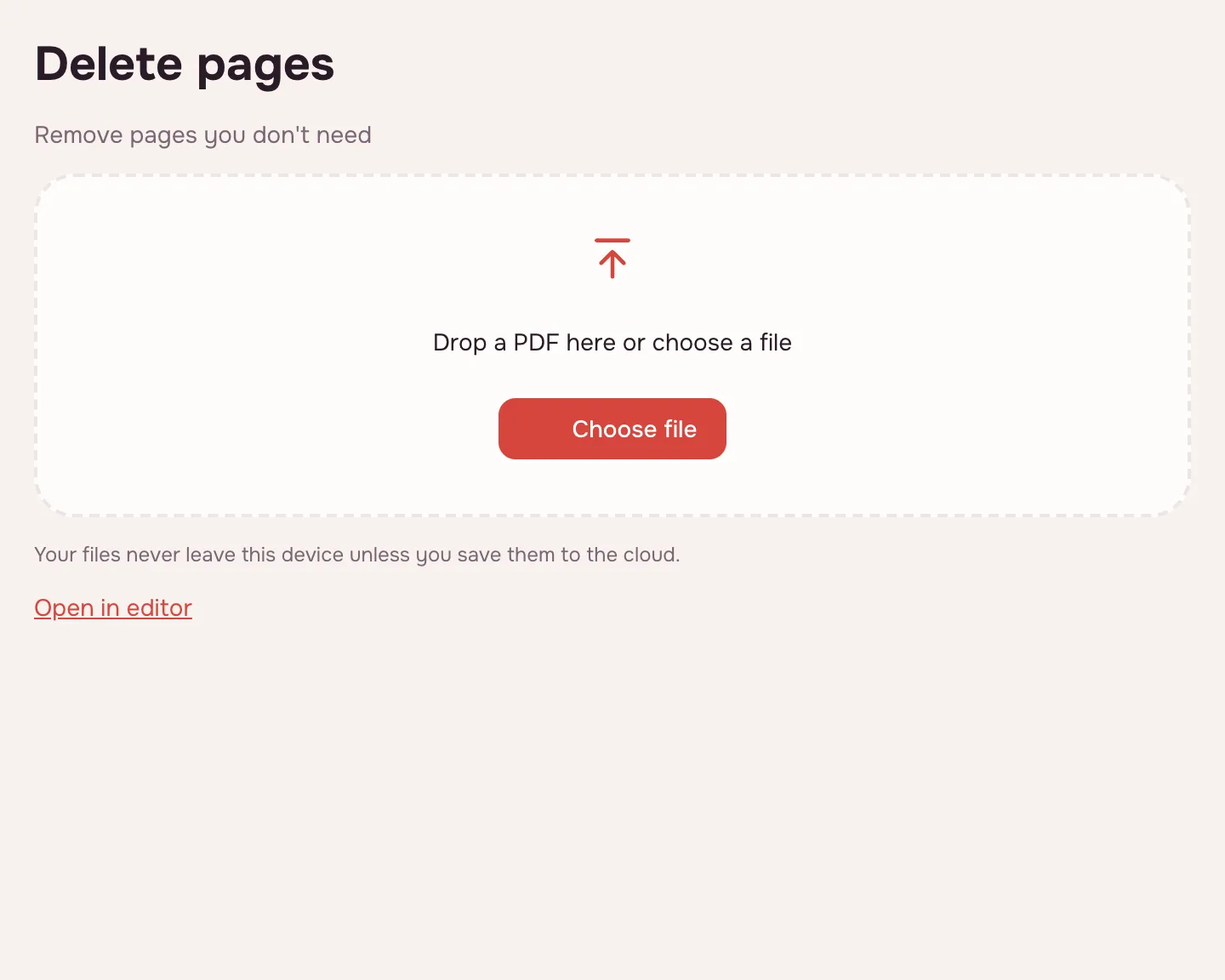
Choose your file
Click “Choose file” or drop the PDF onto the page. It opens in your browser and shows its page count next to the file name, which helps you check the numbers.
List the pages to remove
Type the pages you want gone: single numbers separated by commas, runs joined with a hyphen, for example “1, 4, 10-12”. “8-” removes page 8 through the end. The field is required.
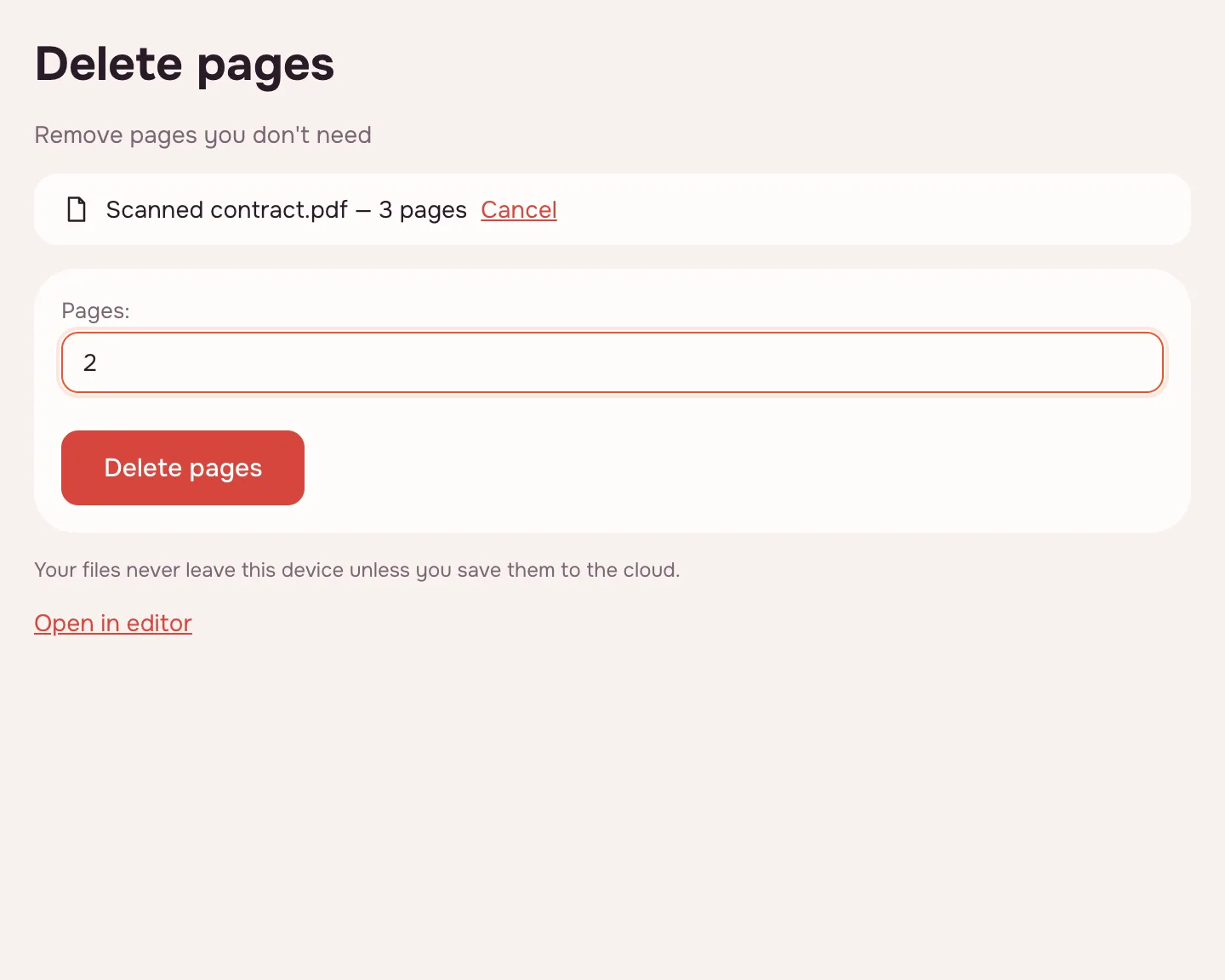
Click “Delete pages”
The tool builds a new PDF without those pages and shows the result screen. Progress is displayed, and a long job on a big file can be cancelled.
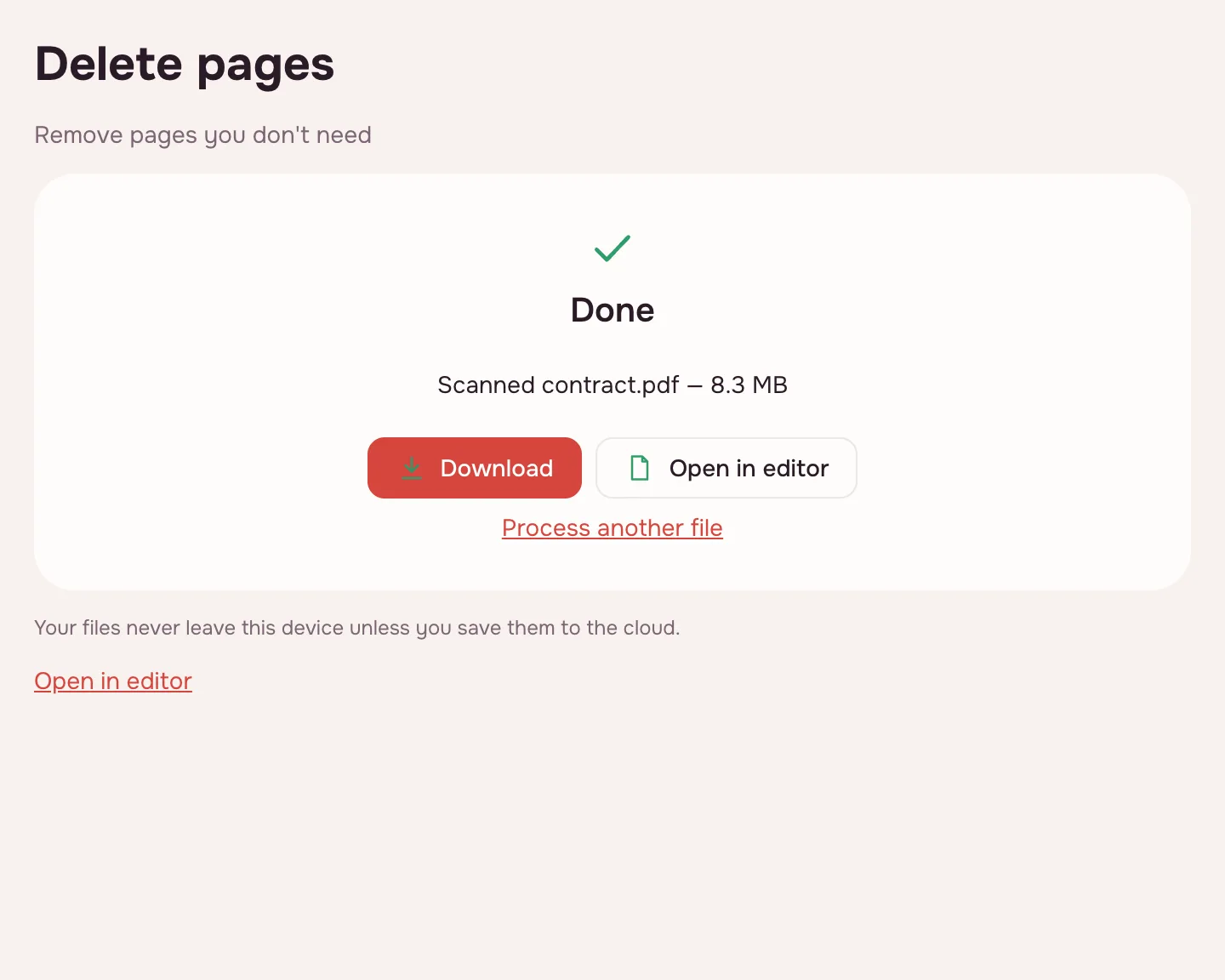
Download the new PDF
Click “Download”. Your original document is not changed: you get a separate copy, so the old file can stay as a backup.
How to delete pages from a PDF
Pages are numbered from one, the way every PDF viewer counts them. Separate single pages with commas and write runs with a hyphen; spaces are optional. The field cannot be left empty — the tool needs to know what to remove.
| You type | Pages that go |
|---|---|
| 3 | Page 3 only |
| 1, 4, 10-12 | Pages 1, 4 and 10 through 12 |
| 8- | Page 8 to the end of the document |
| 2, 5-7 | Page 2 and pages 5 through 7 |
What the tool does
It removes the chosen pages and saves a new PDF without them. The remaining sheets keep their order and are copied as they are: text stays text and images are not recompressed. The source file is not changed.
You cannot delete every page — at least one has to remain. If you need the opposite and want to keep only a few sheets, it is quicker to extract the pages you need into a separate file.
When you need it
- Job applications: drop blank backs and internal pages before sending a portfolio.
- College applications: remove a draft cover and appendices the admissions office did not ask for.
- Tax season: cut old statements out of a combined PDF before e-mailing it to your accountant.
- E-filing portals: fit a page limit without rescanning the whole document.
Remove pages from a PDF without changing the rest
Removing pages from a PDF means deleting the sheets you list and keeping everything else. Type their numbers and click “Delete pages”: you get a new file without them, and the original remains on your device.
If the document is long and the numbers are easy to mix up, open it in the editor. In page organizing mode you select thumbnails and delete them with a button, and every step can be undone until you save. You can also reorder or rotate what is left — organize PDF pages.
Links, bookmarks and file size
Links and bookmarks that pointed to deleted pages stop working; other internal links keep their targets. The file usually gets smaller, but this is not guaranteed erasure: images, fonts and other resources shared with the remaining pages stay in the document, and in rare cases some of the removed content can stay with them.
So for confidential material, do not rely on deleting pages alone. If you need to remove individual lines from a page, such as an account number or an amount, use Redact PDF instead: it deletes the chosen passages and keeps the page.
Limitations
A deleted page cannot be brought back after download, because it is not in the new file — check the list before you run the tool. The numbers always refer to the original document: if you delete some pages and then work on the new file, its numbering has shifted.
A PDF can be up to 100 MB and 1,000 pages. Password-protected files open once you enter the password, and the result is saved without it. If the trimmed file is still heavy, compress it.
Is it safe?
Pages are removed in your browser on your own device and the file is never uploaded. Documents with personal details, statements and work papers do not reach a server. A copy goes to Zotu cloud only if you click “Save to cloud”, and saved files are kept in the EU/US under GDPR.
On phone and desktop
The tool runs in any modern browser on Windows, macOS, Android and iPhone, with nothing to install. On a phone, pick the PDF from Files or Downloads, type the page numbers and save the new document back there.
FAQ
Support: [email protected]
How do I delete PDF pages?
Open the document on this page, type the page numbers in the field and click “Delete pages”. Single pages go in separated by commas, runs with a hyphen, and “8-” means page 8 to the end. Then download the new file; your original is not changed.
How do I remove pages from a PDF?
List the pages you do not need and click “Delete pages”. The remaining sheets keep their order and are copied without recompression, so text and images are unchanged. You can mix single numbers and ranges in one line, such as “2, 5, 9-11”.
Is there a way to delete pages in a PDF?
Yes. This tool deletes chosen pages and saves a new PDF without them, and it needs no account or install. At least one page must remain, and the page numbers refer to the original file. A password-protected PDF works if you know the password.
How do I delete pages from a PDF on a Mac?
Open this page in any browser on macOS, click “Choose file” and select the PDF. Type the pages to remove, click “Delete pages” and download the new file. Nothing is installed, and the document is processed on your Mac rather than uploaded to a server.
Can you delete PDF pages?
Yes, as many as you like as long as one page remains. You can remove pages that are not next to each other by listing them together, for example “1, 4, 10-12”. The rest of the document is copied unchanged, and the source file stays as it was.
Can I delete pages that aren’t next to each other?
Yes. Separate the page numbers with commas and keep runs with a hyphen: “2, 5, 7-9” removes page 2, page 5 and pages 7 through 9 in one pass. You do not need to delete them one at a time, and the remaining pages close the gaps automatically.
What happens to links and bookmarks?
Links and bookmarks that pointed to deleted pages stop working, while other internal links keep pointing to the same pages as before. External links to websites are not affected. If a link mattered, note its target before deleting the page it lived on.
Is it free? Is there a watermark?
It is free, with no sign-up and no watermark. Nothing is added to the result — no logo, no stamp and no extra pages, just your document without the sheets you listed. The limits are on the file: up to 100 MB and 1,000 pages.
Is it safe to upload documents?
Nothing is uploaded: the pages are removed in your browser on your own device. Documents with ID numbers, statements and contracts stay with you. The result reaches cloud storage only if you click “Save to cloud”, and saved files are kept in the EU/US under GDPR.
More PDF tools
Compress PDF
Make a PDF smaller for e-mail or an upload form, with three quality levels.
Merge PDF
Combine several PDFs and images into one file, in the order you choose.
Split PDF
Split a PDF into single pages or fixed-size parts and download them as one ZIP.
Rotate PDF
Turn PDF pages 90° or 180° — the whole document or just the pages you pick.
Extract PDF pages
Save the pages you choose as a new PDF, in the order you list them.
Organize PDF
Reorder PDF pages by dragging thumbnails, rotate, delete or insert pages.
Crop PDF
Trim the same margin from all four sides of your PDF pages.
Redact PDF
Black out and remove personal data from a PDF: phone numbers, SSNs, emails, card numbers.
Delete pages from a PDF online
Remove the pages you don’t need and save a new PDF with everything else intact.
Open editor