PDF page numbers: add them where readers expect
PDF page numbers keep a job application packet or a tax return in order. Pick a position, choose the pages and click “Page numbers”: each sheet gets “Page N of M”, processed in your browser.
- Files stay on your device
- No sign-up
- No watermark
- Up to 100 MB
- Works with
- .jpg
- .png
- .docx
- .xlsx
How to add page numbers to a PDF
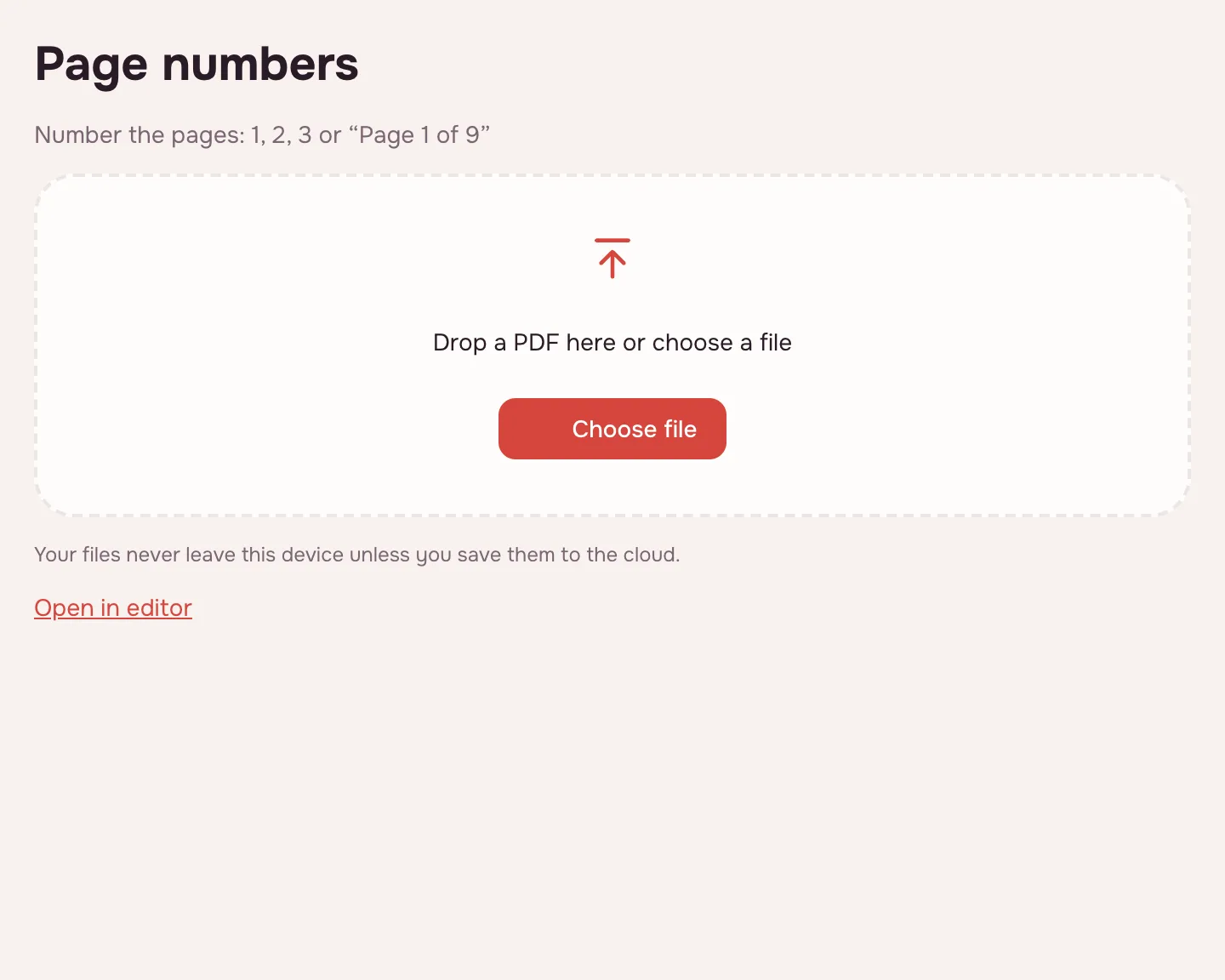
Choose your file
Click “Choose file” or drag the PDF onto the box. The page count appears next to the file name, so you can check it opened fully.
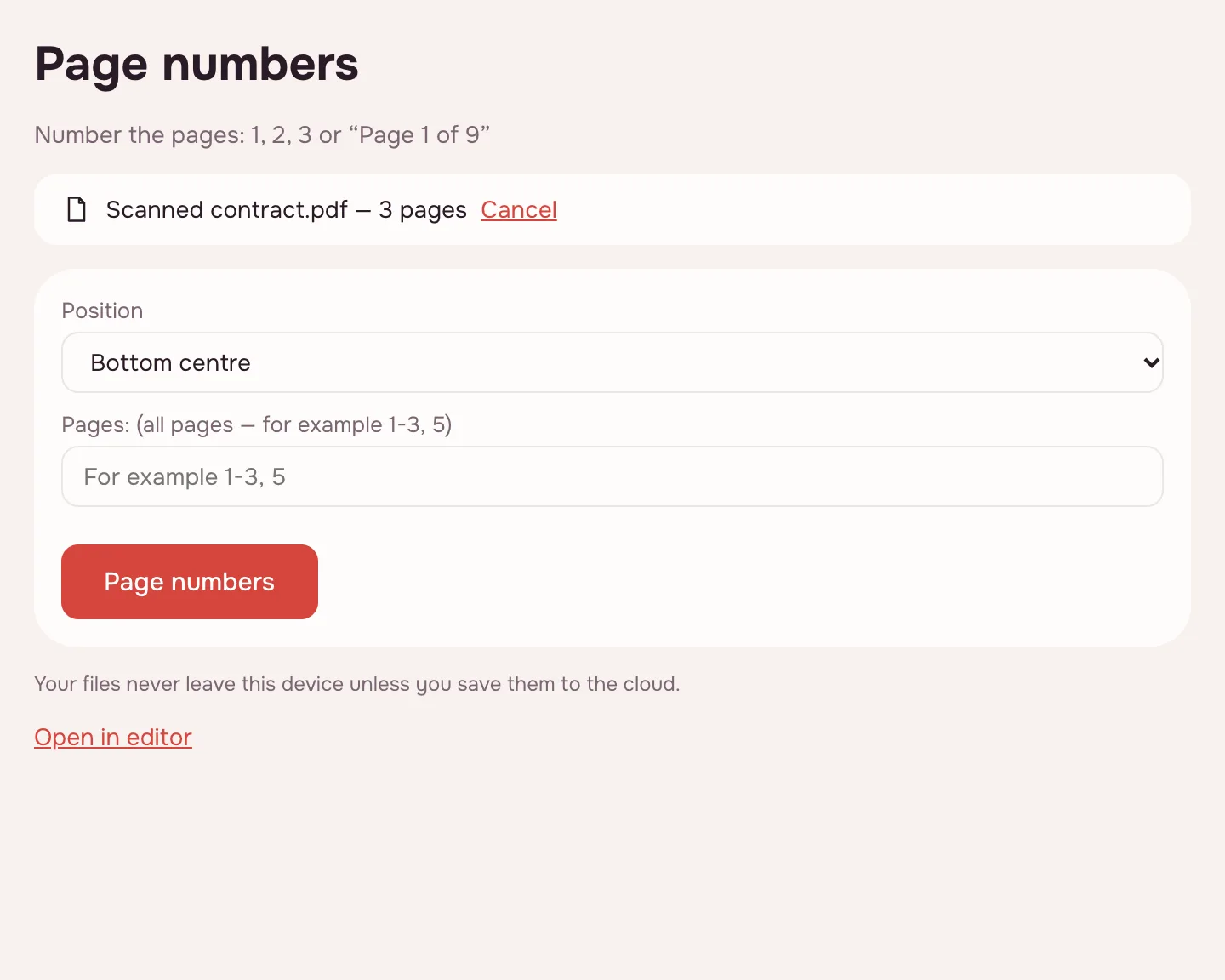
Pick a position
The “Position” list has six places: top or bottom, left, centre or right. To number some pages, type them in the page field, such as 2-10.
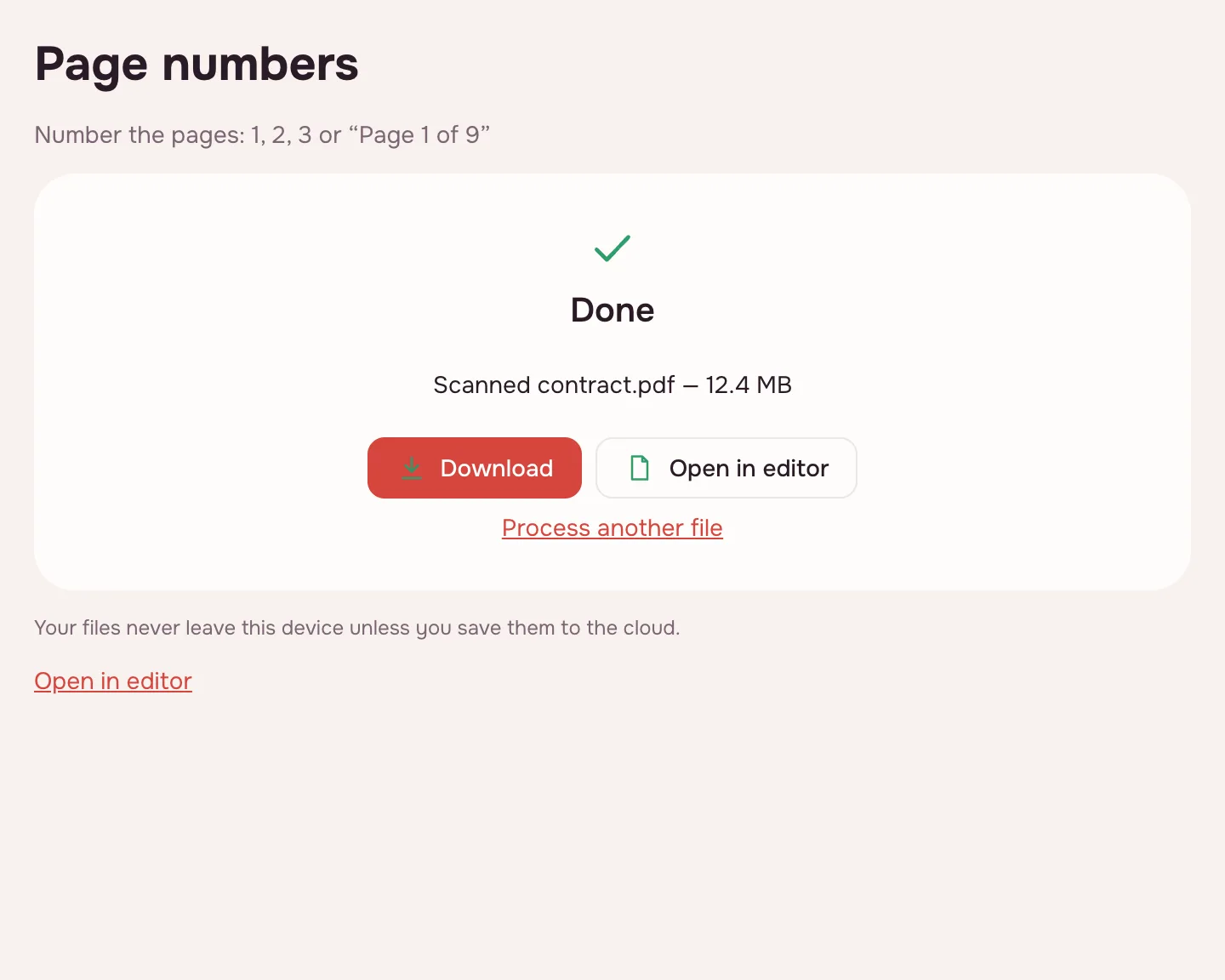
Click “Page numbers”
The tool writes “Page N of M” on the chosen pages. On the result screen, click “Download” or “Open in editor”; signed-in users also get “Save to cloud”.
What the tool does
The quick tool adds “Page N of M” numbering and offers six positions: top or bottom, left, centre or right. The page field limits numbering to the sheets you name.
The editor adds “Page {page} of {pages}” or “Page {page}”, a starting number, size, edge distance and Bates numbering.
| Setting | In the tool | In the editor |
|---|---|---|
| Format | “Page N of M” | “Page N of M” or “Page N” |
| Position | Top or bottom, left, centre, right | The same six places |
| Pages | All or listed pages | All or picked pages |
| Start at | From page 1 | Any number |
| Size and margin | Fixed | Your size and edge distance |
| Bates numbering | Not available | Prefix, suffix and number of digits |
When you need page numbers
- Job applications: keep a résumé, cover letter and samples in order.
- College applications: number transcripts, essays and certificates in one packet.
- Tax season: give an accountant or an e-filing upload a document with citable pages.
- Legal exhibits: Bates numbering gives every page a unique identifier.
Add page numbers to a PDF
To add page numbers to a PDF, open the file, choose a position and click “Page numbers”. Numbers are drawn onto the page, so they appear in any reader and in print. If the packet is built from several PDFs, merge them first: the count then runs continuously.
PDF page numbers: where to put them
Bottom centre is usual for reports and coursework; bottom right suits documents that are printed and bound. Numbering follows the current page order, so organize the pages first if they need rearranging; a finished file can then be marked with a watermark.
Limitations
Only Arabic numerals are available: there are no Roman numerals. One format applies to the whole run. A document can be up to 100 MB and 1,000 pages. Password-protected files ask for the password, and the result is saved without it.
Is it safe?
The file is processed in your browser on your own device and never uploaded, so tax returns, transcripts and contracts stay with you. Cloud storage is optional and needs an account; saved files are kept in the EU/US under GDPR.
On phone and desktop
The tool runs in any modern browser on Windows, macOS, Android and iPhone, with nothing to install. On a phone, pick the PDF from Files or Downloads, choose a position and download the numbered file.
FAQ
Support: [email protected]
How do I add page numbers to a PDF?
Click “Choose file”, pick a position in the “Position” list and click “Page numbers”. The pages are numbered “Page N of M”. If you need only some pages, enter a range first. Then download the finished file from the result screen.
Can you add page numbers to a PDF for free?
Yes. The tool is free, needs no account and adds no watermark. The only limits are 100 MB and 1,000 pages per document. An account is needed only for saving the result to the cloud; downloading works right away.
Can you number PDF pages in a chosen position?
Yes. There are six positions: top or bottom, left, centre and right. Bottom centre is usually the most common choice for reports and coursework, and bottom right suits documents that are printed and bound together.
Can I start numbering at a number other than 1?
In the quick tool, numbering starts at the first page. The editor has a “Start at” setting, so a document can begin at 5 or 10 after an unnumbered cover and table of contents. The chosen number applies to the pages you select.
Can I add Bates numbering?
Yes, in the editor. Bates numbering adds a prefix, a suffix and a fixed number of digits, so every sheet in a legal packet gets a unique identifier. The quick tool on this page adds ordinary page numbers instead.
Is it safe to upload documents?
Nothing is uploaded: the PDF is processed in your browser on your own device. Tax returns, transcripts and contracts never reach a server. The result downloads straight to your device, and a cloud copy is made only if you choose “Save to cloud”.
More PDF tools
PDF Editor
Change text and pictures on the page, add a signature, comments and fill in forms.
Sign PDF
Add a signature to a PDF: draw it, type it or upload a picture.
Fill PDF
Type into the fields of a PDF form and download the completed document.
Watermark PDF
Add your own text across PDF pages and download the finished file.
Flatten PDF
Turn form fields and comments into part of the page so they can no longer be edited.
Merge PDF
Combine several PDFs and images into one file, in the order you choose.
Organize PDF
Reorder PDF pages by dragging thumbnails, rotate, delete or insert pages.
Rotate PDF
Turn PDF pages 90° or 180° — the whole document or just the pages you pick.
PDF page numbers: add them where readers expect
Number PDF pages in the position you choose and download the finished file.
Open editor