Protect PDF with a password
Protect PDF with a password before you e-mail a tax form, a bank statement or a signed lease. Enter a password to open, and the file is encrypted with AES-256: without the password it will not open, even if the message reaches the wrong inbox.
- Files stay on your device
- No sign-up
- No watermark
- Up to 100 MB
- Works with
- .jpg
- .png
- .docx
- .xlsx
How to protect a PDF
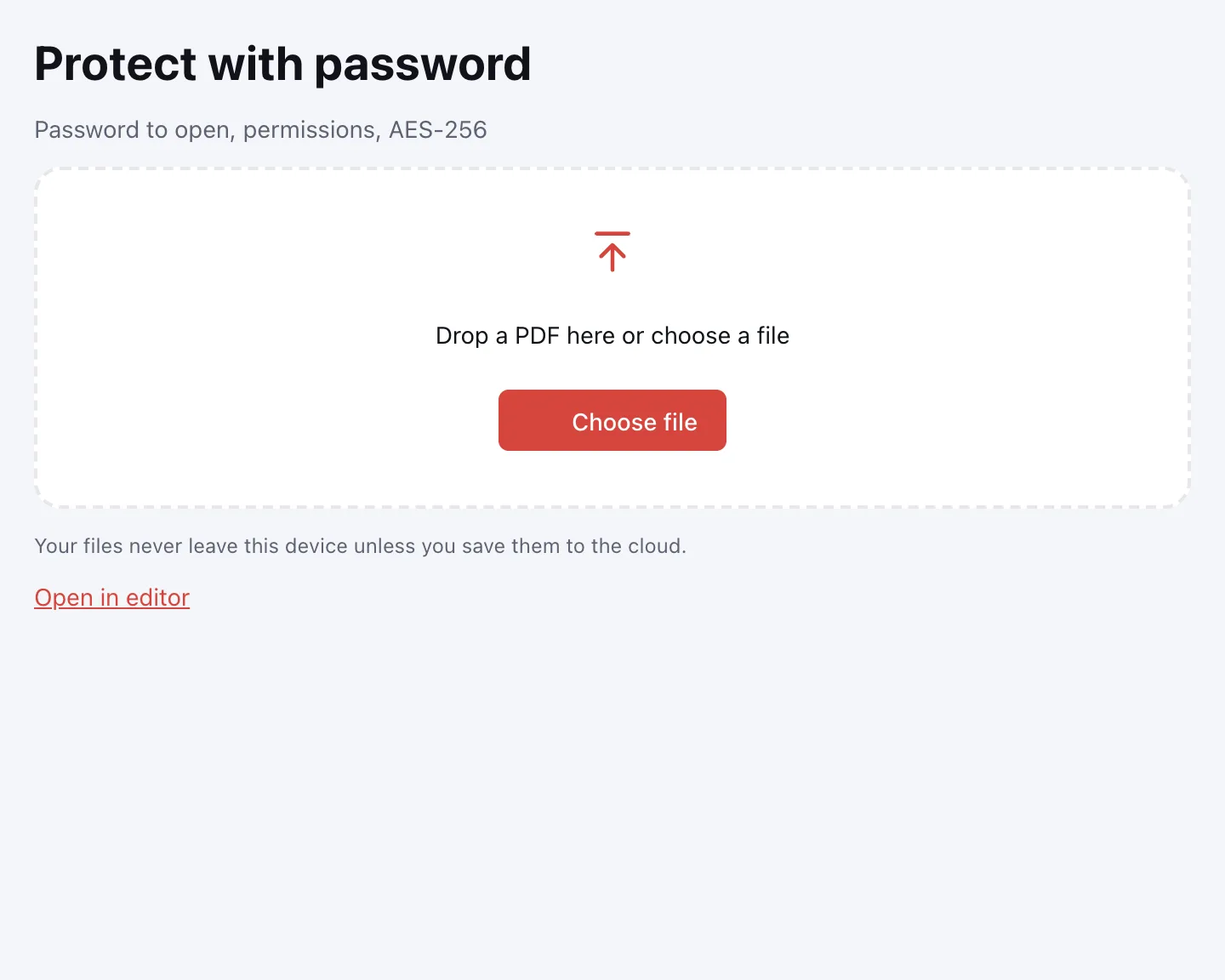
Choose your file
Click “Choose file” or drop the PDF onto the page. It opens in your browser, and the encryption happens there too, on your own device.
Enter the password twice
Fill in “Password to open” and “Repeat the password” to rule out a typo. A phrase of several words works best: easy to remember, hard to guess.
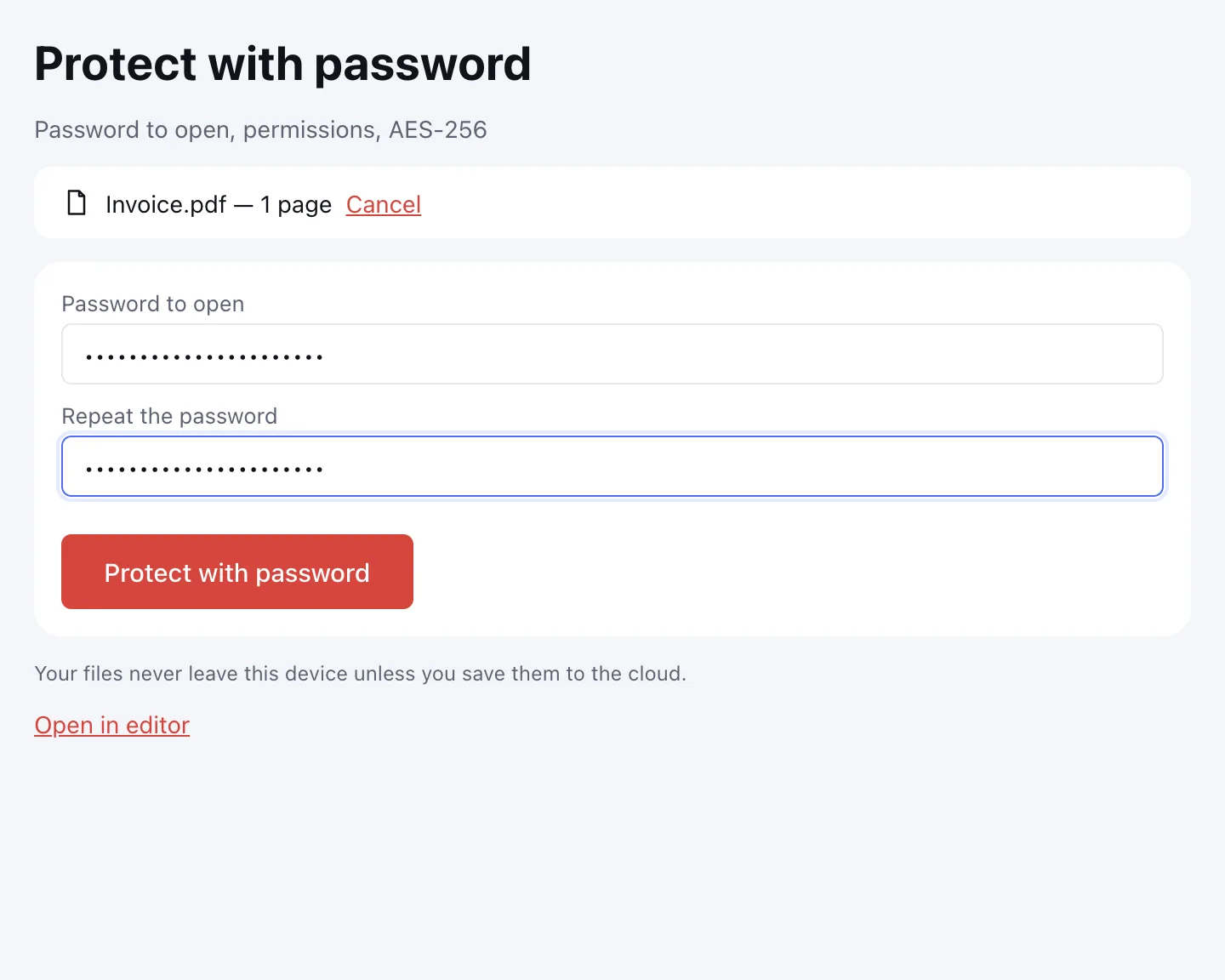
Click “Protect with password”
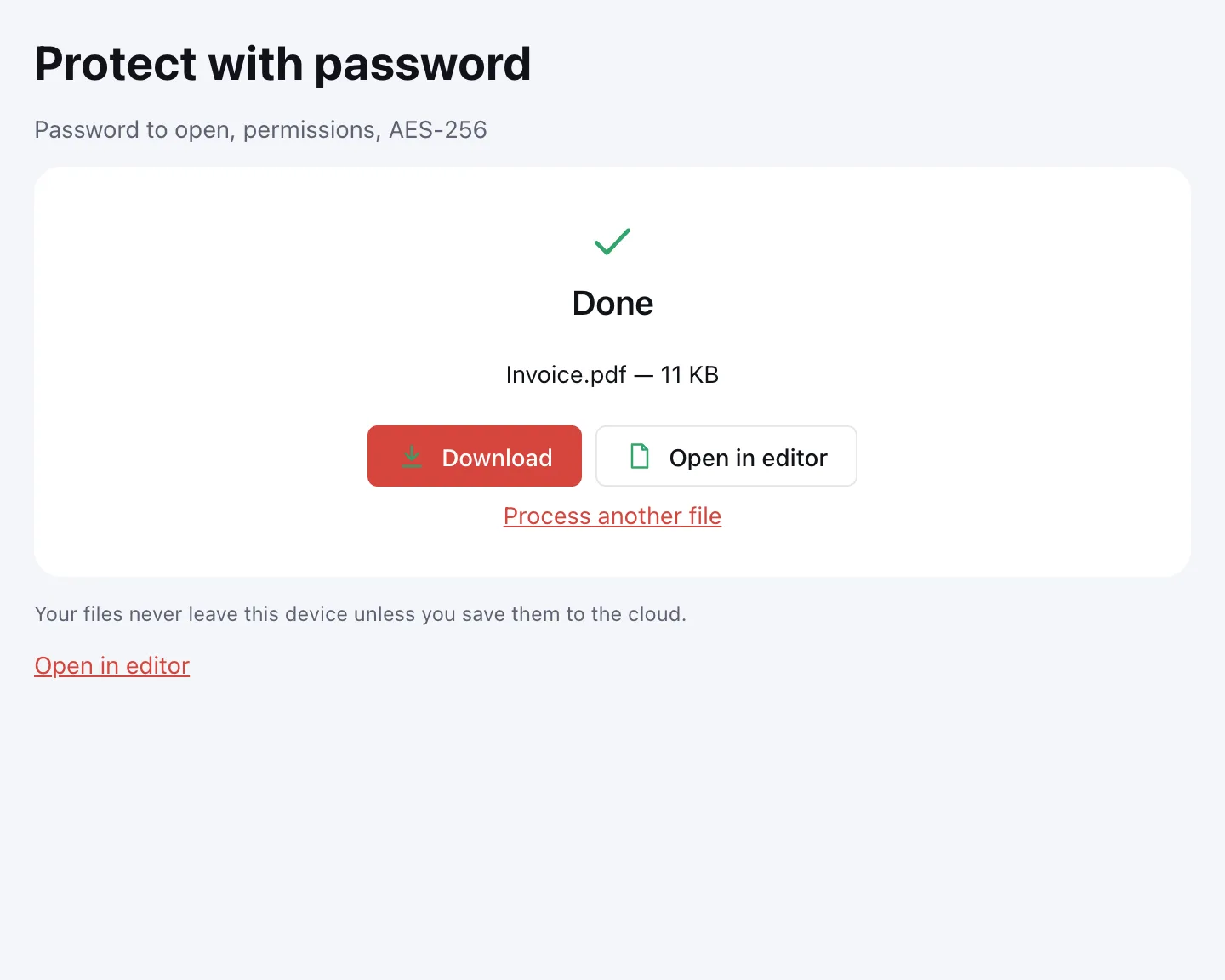
The file is encrypted and the result screen appears. Click “Download” or save it to the cloud after signing in.
Restrict printing and editing in the editor
Permissions are set separately: Document → “Protect with a password…”, then tick “Restrict printing and editing”. They need a separate permissions password.
What the tool does
The tool sets a password to open and encrypts the document with AES-256. In the editor you can add a permissions password: printing allowed, limited to 150 dpi or not allowed; changing content; comments; forms and signing; inserting, deleting and rotating pages; copying. Passwords are stored nowhere.
When you need it
- Tax season: e-mail tax forms to your accountant.
- Job applications: send an ID or a background-check form safely.
- E-filing: protect a consent or authorization form before uploading it to a portal.
- Finance: send bank statements and payslips by e-mail.
- Shared folders: keep a document closed when others can see the folder.
Password protect PDF: open password and permissions
The password to open is the real protection: without it the file cannot be viewed or printed. A permissions password limits actions on an open document and must differ from the password to open. Readers honour these restrictions, but do not encrypt what someone can already see, so rely on the password to open for confidential material.
Encrypt PDF: what happens to the file
The PDF is encrypted with AES-256 in your browser. The password is not stored in the document or on a server: if you forget it, the file cannot be opened. Send the password through a different channel — a text message if the PDF goes by e-mail. To get a copy without protection, use the Unlock PDF tool.
Open a protected PDF online
A protected PDF opens in any modern reader after the password is entered — a browser viewer, a desktop app or a phone. The file stays encrypted on disk, and the reader decrypts it only for display. Without the password there is no way in.
Protect PDF from editing
To stop editing without encrypting the whole file, set a permissions password and tick “Restrict printing and editing”. You can block content changes, comments, form filling and signing, page insertion, deletion and rotation, and copying text and pictures. PDF readers honour these restrictions but do not encrypt what a reader already sees — the password to open remains the real protection.
Limitations
A forgotten password cannot be recovered, because it is stored nowhere. Protection does not stop someone photographing the screen or forwarding an opened document. A PDF can be up to 100 MB and 1,000 pages. A password and a certificate signature are not combined: remove protection before signing, and encrypting a signed file breaks its signature. A drawn signature works with a password. To remove sensitive text before sharing, redact the PDF.
Is it safe?
The document and the password are processed in your browser and never uploaded. The file reaches Zotu cloud only if you click “Save to cloud” after signing in; saved files are kept in the EU/US under GDPR. The password never leaves the page.
On phone and desktop
The tool runs in any modern browser on Windows, macOS, Android and iPhone, with nothing to install. On a phone, pick the PDF from Files or Downloads and save the copy there.
FAQ
Support: [email protected]
How do I add a password to a PDF?
Click “Choose file”, add the PDF, then type the password in “Password to open” and again in “Repeat the password”. Click “Protect with password” and download the encrypted file. Share the password separately, so it never travels in the same message as the document.
Can I add a password to a PDF for free?
Yes. The tool is free, needs no account and adds no watermark. The PDF is encrypted with AES-256 on your device, and the password is not stored anywhere. The only limits are on the file: up to 100 MB and 1,000 pages.
Can you encrypt a PDF for free?
Yes, encryption with AES-256 costs nothing here. Add the file, set a password to open and download the result. No sign-up is required, and nothing is uploaded — encryption runs in your browser. An account is needed only to save the file to the cloud.
How do I password protect a PDF file on a Mac?
Open this page in any browser on macOS, click “Choose file” and select the PDF. Enter and repeat the password, then click “Protect with password” and download the file. No software needs to be installed, and the encryption happens on your Mac rather than on a server.
How do I protect a PDF file from editing?
In the editor, open Document → “Protect with a password…”, tick “Restrict printing and editing” and set a permissions password. You can block changes, comments, form filling, signing, page changes and copying. The permissions password must differ from the password to open.
What if I forget the password?
The file cannot be opened: the password is stored nowhere, neither in the document nor on a server, so it cannot be recovered. Save it in a password manager before you send the file, and keep a backup copy somewhere safe.
Will a protected PDF open on a phone?
Yes. Modern PDF readers on iPhone and Android ask for the password and open the document, as do desktop readers and browser viewers. The file stays encrypted on disk, and the reader decrypts it only for display.
Is it free? Is there a watermark?
It is free, with no sign-up and no watermark. Nothing is added to the protected document — no logo and no extra page, just your encrypted file. There is no limit on the number of documents.
Is it safe to upload documents?
Nothing is uploaded: the encryption runs in your browser on your own device, and the password never leaves the page. Tax forms, IDs and contracts stay with you. The file reaches cloud storage only if you click “Save to cloud”, and saved files are kept in the EU/US under GDPR.
More PDF tools
Unlock PDF
Remove the password and restrictions from a PDF when you know it.
Redact PDF
Black out and remove personal data from a PDF: phone numbers, SSNs, emails, card numbers.
Sign PDF
Add a signature to a PDF: draw it, type it or upload a picture.
PDF Editor
Change text and pictures on the page, add a signature, comments and fill in forms.
Fill PDF form
Fill in PDF form fields in your browser — text, check boxes, lists — and download the result.
Flatten PDF
Turn form fields and comments into part of the page so they can't be changed.
Compress PDF
Make a PDF smaller for e-mail or an upload form, with three quality levels.
Merge PDF
Combine several PDFs and images into one file, in the order you choose.
Protect PDF with a password
Encrypt a PDF with a password to open and restrict printing or editing.
Open editor