OCR PDF: add a searchable text layer to a scan
OCR a PDF when a scan will not let you search or quote it. Add the file and click “Recognize text (OCR)”: the page looks the same, but the words become findable, selectable and copyable. Recognition runs in your browser on your device, so the scan is never uploaded.
- Files stay on your device
- No sign-up
- No watermark
- Up to 100 MB
- Works with
- .jpg
- .png
- .docx
- .xlsx
How to OCR a PDF
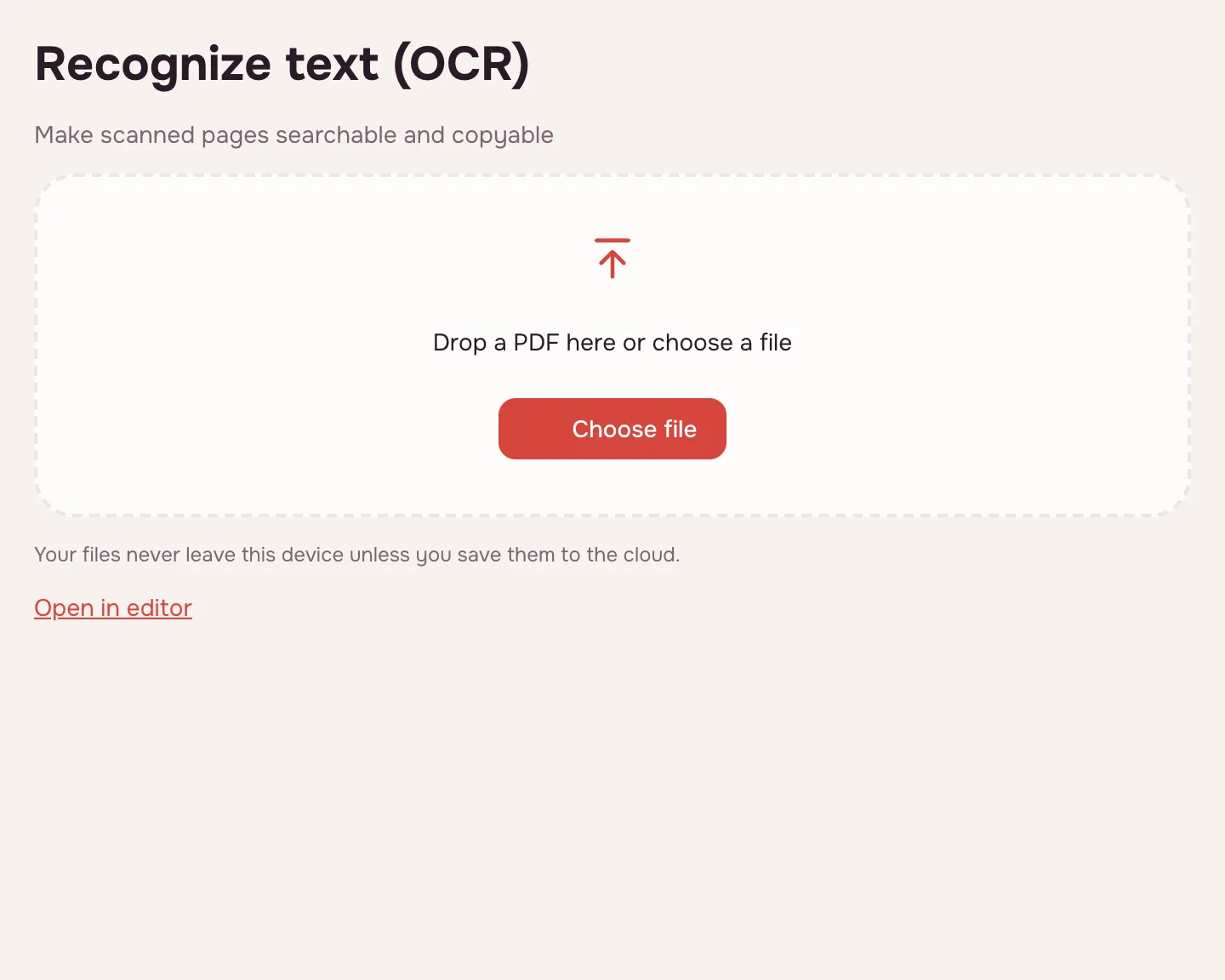
Choose your file
Click “Choose file” or drop the PDF onto the page. Scanner output and photos of a document both work.
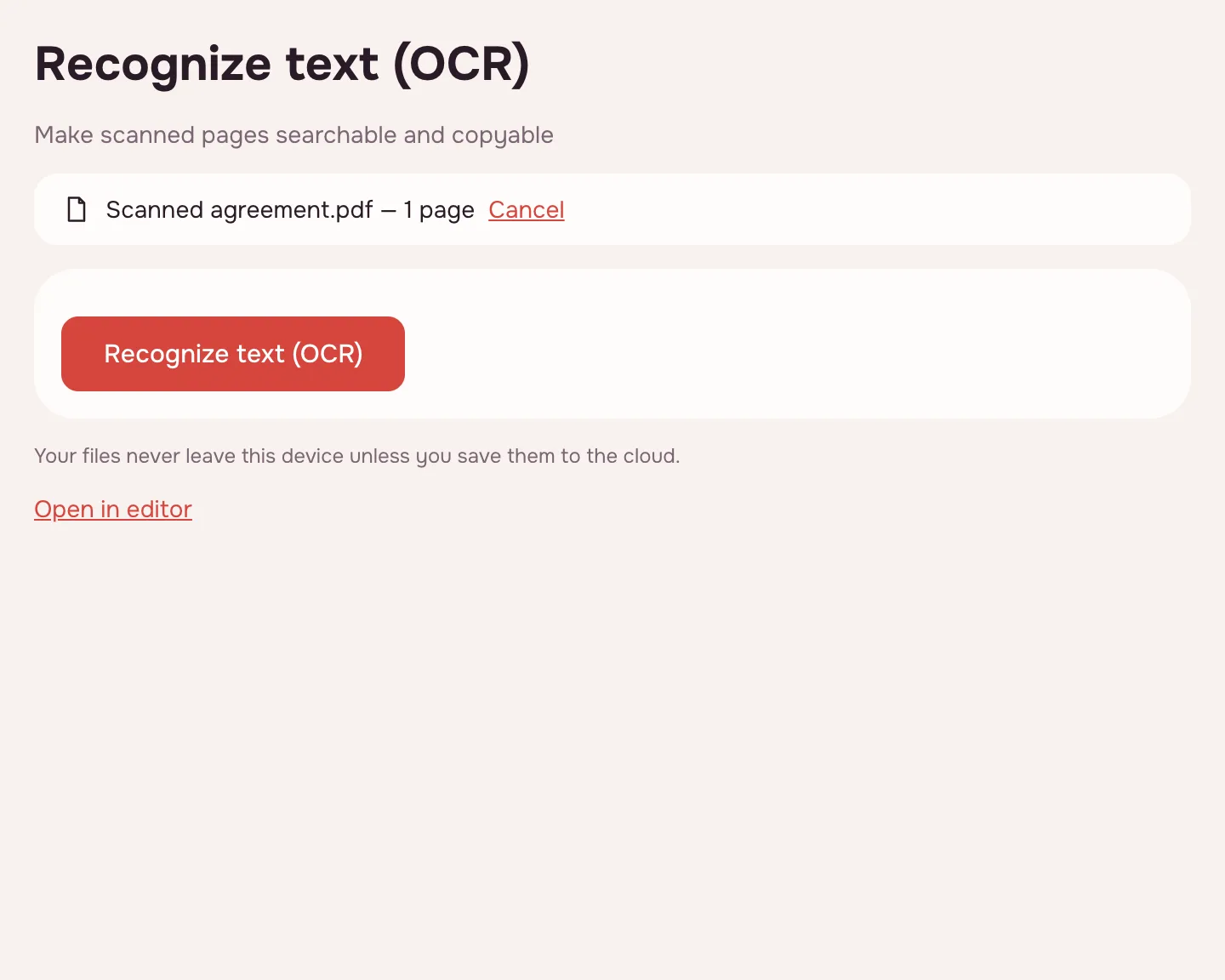
Click “Recognize text (OCR)”
The tool works through the pages and shows progress. Pages that already contain text are skipped, so they are not processed twice.
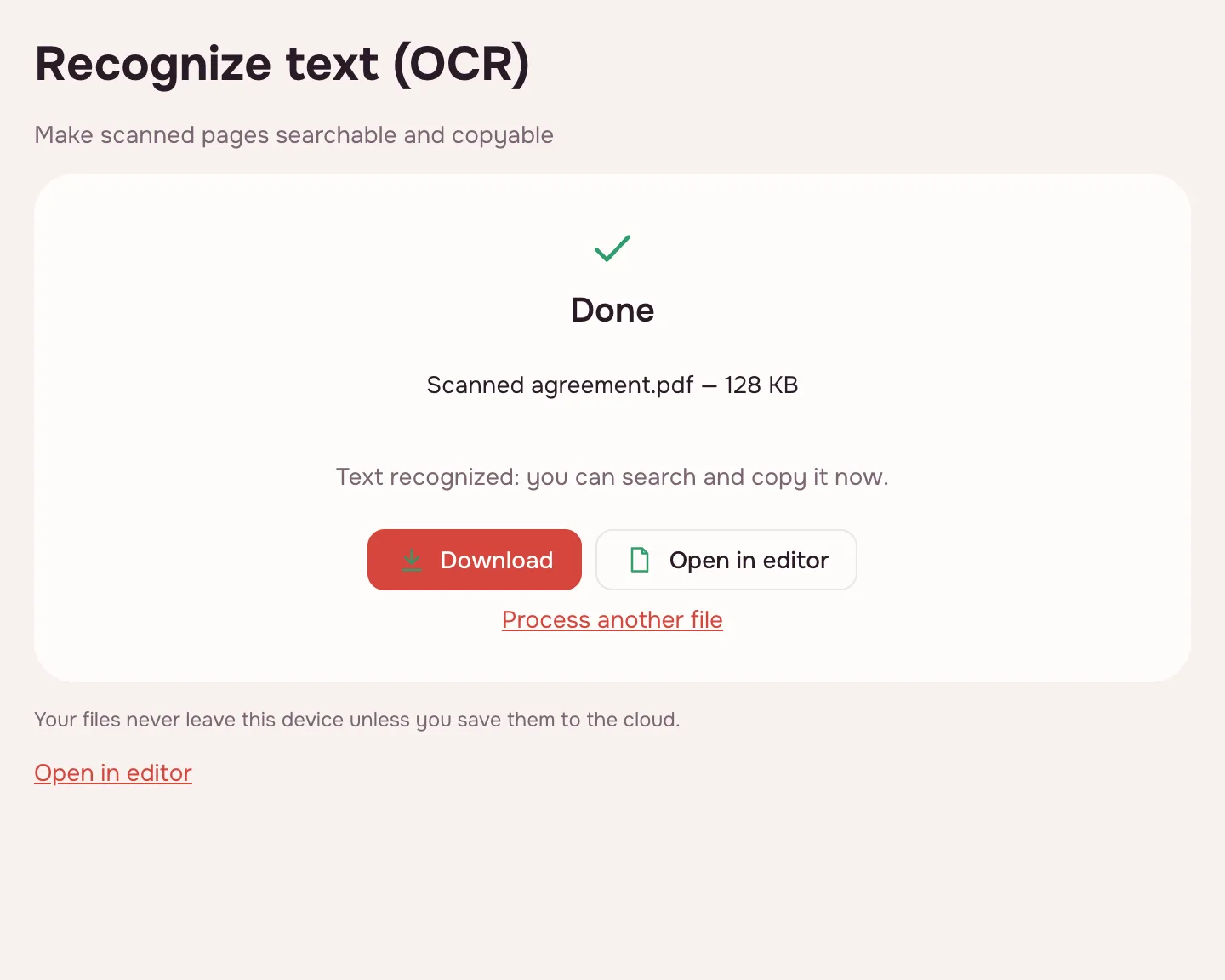
Download the searchable PDF
When “Done” appears, click “Download” or “Open in editor”. Test the result by searching for a word or copying a line.
Remove the layer if it is wrong
In the editor, choose Document → “Remove recognized text”: the layer is deleted and the scan stays as it was. The same menu offers “Recognize text (OCR)…” for selected pages.
What the tool does
OCR reads the shapes of letters in a picture of a page and writes the words into the PDF as an invisible layer placed exactly over them. The page looks unchanged, but the text can be found, selected and copied. Recognition runs in your browser, and the scan is not uploaded.
- English text in this edition.
- Pages that already contain text are skipped.
- Running OCR again replaces the previous layer instead of stacking a second one.
- The layer can be removed in the editor without touching the scan.
When you need it
- Finding a lease or an insurance policy in an archive of scans by a name or a number.
- Quoting a printed article without retyping it.
- Copying account details from a photo of a letter.
- Preparing a scan for conversion to DOCX or a spreadsheet.
OCR PDF: languages and accuracy
This edition recognises English only; a document in another language gets no usable text layer. Handwriting is not recognised either, and no OCR tool is perfect: accuracy depends on the scan. A flat page at 300 dpi with clear print works best; a photo taken at an angle or a faint copy can produce errors, so check names, numbers and dates by eye.
| Source | Expected result | Advice |
|---|---|---|
| Scanner output, 300 dpi | High accuracy | Ready for search and quotes |
| Phone photo in even light | Good | Shoot from above, avoid shadows |
| Faint copy or small type | Fair | Check figures and names |
| Handwriting | Usually none | Keep the page as an image |
From scanned PDF to text
After recognition the PDF is searchable: the browser finds a word and scrolls to it, and a sentence can be copied into an email. To get the text out as a separate file, use PDF to text; for an editable document, use PDF to DOCX. The scan on disk is never changed.
Free OCR in the PDF editor
The quick tool recognises the whole file. The editor adds two things: a page range in “Document → Recognize text (OCR)…” for chosen pages, and “Remove recognized text” if the result is wrong. There is no paid OCR tier and no page counter; the file limits are the only cap.
Choosing an OCR tool
The best OCR tool is the one that fits the document and the place where it is processed. Check which languages it supports, whether it keeps the page layout, and whether the file leaves your device. A local browser tool is the safer choice for contracts and medical letters; a cloud service may suit a large archive, but those scans are uploaded.
Limitations
Handwriting is not recognised, and accuracy on print depends on the source — no OCR guarantees a perfect result. Only English is supported in this edition. A file can be up to 100 MB and 1,000 pages; long scans take longer, with progress shown per page. Password-protected PDFs open if you know the password.
Is it safe?
The scan is processed in your browser on your own device and is not uploaded. Contracts, medical letters and personal documents stay with you. The language data is downloaded once and then served from the browser cache. A copy reaches cloud storage only if you click “Save to cloud”, and saved files are kept in the EU/US under GDPR.
On phone and desktop
Recognition works in any modern browser on Windows, macOS, Android and iPhone. On a phone you can photograph a page and recognise it straight away; you can also combine page photos into one PDF with JPG to PDF first. A computer finishes long documents faster. The result downloads to your device or opens in the editor.
FAQ
Support: [email protected]
How do I OCR a PDF?
Click “Choose file”, add the scan and click “Recognize text (OCR)”. The tool works through the pages and adds an invisible text layer. When “Done” appears, download the file and test it by searching for a word or copying a line. Recognition runs in your browser, so nothing is uploaded.
How do I make a PDF searchable?
Run OCR on the file: the recognised words become a text layer placed over the page image, so search, selection and copying work while the page looks unchanged. Pages that already have text are skipped. Download the result and check a few names or numbers before relying on the search.
Can I convert a scanned PDF to text?
Yes. Recognise the scan first, then use the PDF to text tool to extract the layer as plain text, or open the PDF to DOCX converter for an editable document. Keep the original scan: if a value looks wrong, compare it with the image before using it in a report.
Does OCR work with handwriting?
No. The engine is trained on printed text, so handwriting is usually left unrecognised. You can still keep the page as an image, add a note in the editor or type the key passages by hand. For a form with handwritten entries, check the boxes and fields manually.
Which languages are supported?
This edition recognises English. A document in another language gets no usable text layer, even if the letters look familiar. If you need several languages, check the tool's language list before uploading anything sensitive; here the recognition stays on your device, but it covers English only.
Can I remove the recognised text?
Yes. In the editor, choose Document → “Remove recognized text”: the invisible layer is deleted and the scan image stays as it was. This is useful when recognition produced errors and you want to start again or keep the page as a picture.
Is it free? Is there a watermark?
It is free, with no sign-up and no watermark. Nothing is added to the pages — no logo, no extra sheet, only the invisible text layer. The limits are on the file: up to 100 MB and 1,000 pages. There is no paid tier and no page counter.
Is it safe to upload documents?
Nothing is uploaded: recognition runs in your browser on your own device. Contracts, medical letters and identity papers stay with you. The language data is fetched once and then cached. A copy reaches cloud storage only if you click “Save to cloud”.
Can I OCR only some pages?
The quick tool processes the whole file and skips pages that already contain text. For selected pages, open the PDF in the editor and use Document → “Recognize text (OCR)…”, where you can enter a page range. The editor also lets you remove the layer if the result is not right.
More PDF tools
PDF to Word
Turn a PDF into an editable DOCX with headings, lists, tables and images.
PDF to text
Get the text out of a PDF as TXT, HTML or RTF in the right reading order.
JPG to PDF
Combine JPG and PNG pictures into one PDF, in the order you choose.
Redact PDF
Black out and remove personal data from a PDF: phone numbers, SSNs, emails, card numbers.
PDF to Excel
Turn tables from a PDF into an XLSX workbook with numbers, amounts and dates as values.
PDF to PPT
Turn PDF pages into PPTX slides with editable text, pictures and tables.
PDF to PDF/A
Check a document and save it as PDF/A-1b or PDF/A-2b for long-term archiving.
PDF Editor
Change text and pictures on the page, add a signature, comments and fill in forms.
OCR PDF: add a searchable text layer to a scan
Add an invisible text layer to a scanned PDF so search, selection and copying work.
Open editor